# Welcome to Click

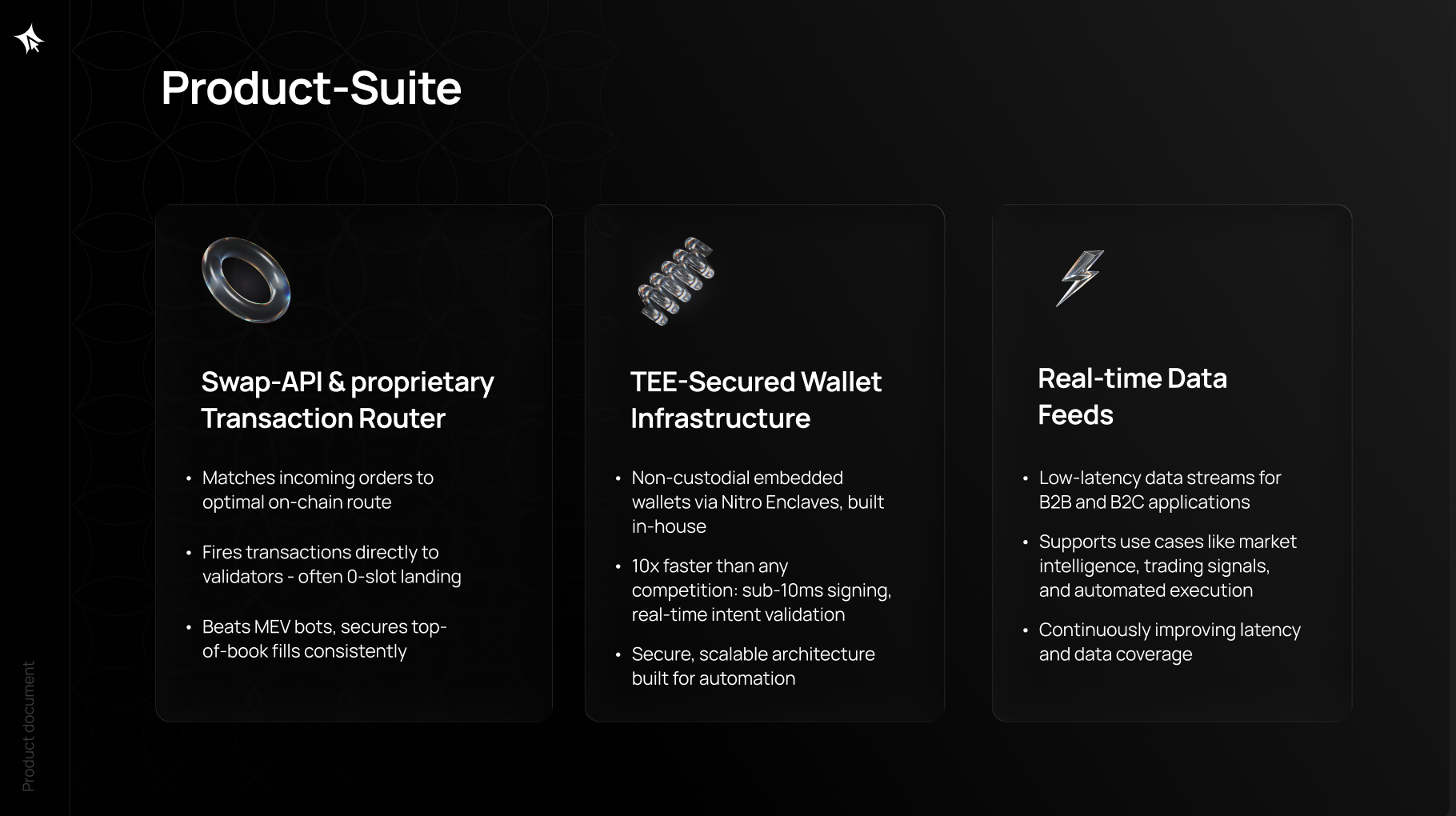
Click is revolutionizing trading by combining powerful infrastructure with an intuitive, user-friendly experience. Designed for traders who demand precision, speed, and insight, our platform offers real-time market signals, lightning-fast execution, and a built-in rewards system

> At Click, our mission is to redefine how users interact with the Markets by merging high-performance infrastructure with grassroots community incentives. We’re building the fastest, most intelligent, and most rewarding trading platform — designed for pros, but free for all.
>
> From Solana’s fastest bots to full-stack analytics and a dynamic rewards engine, we’re setting the standard for signal over noise, while giving users true ownership in the ecosystem they help grow.
>
> —The Click Team
>
> <br>


# Quick Start

**Initializing the Click Telegram Bot**

How to Start Using the Bot:

1. **Download Telegram**\
   If you don’t already have Telegram installed, download it from telegram.org or your app store.
2. **Find the Click Bot**\
   Search for @clickdottrade\_bot inside Telegram, or use this [direct](https://t.me/clickdottrade_bot) link.
3. **Start the Bot**

{% embed url="<https://app.guideflow.com/player/zkjv491fek>" %}

\
Press Start or type `/start` to begin. The bot will automatically create a wallet for you and display your public address&#x20;

{% hint style="info" %}
**Important Note:**

Please make sure to **back up your private key** securely. If you lose access to it, you may lose access to your funds permanently. Click.Trade cannot recover lost private keys, so it’s essential to store it in a safe place, such as a password manager or hardware wallet.

We recommend avoiding storing your private key digitally in places prone to unauthorized access, and always keep multiple secure backups.
{% endhint %}

4. **Approve Trading Intent** — one-time approval to enable trading
5. **Fund Your Wallet** — link to [Fund Your Wallet](/getting-started/fund-your-wallet) page
6. **Make Your First Trade** — paste a token CA or use `/buy`

{% hint style="info" %}
We recommend that you import your recovery phrases into a standard wallet like Phantom, Rabby, Solflare, etc.. This will ensure that you always have direct access to your funds under any circumstances.
{% endhint %}


# Fund Your Wallet

#### Spot Trading Bot

{% embed url="<https://app.guideflow.com/player/zkjv4l0tek>" %}

1. **Access your wallet** — `/start` or `/wallet` to see your deposit address
2. **Copy your deposit address** — standard Solana address
3. **Send funds** — SOL from any exchange or wallet
   * 💡 TIP: "Send a small test amount first to verify the address"
4. **Wait for confirmation** — Solana transactions typically confirm within a few seconds. Once confirmed, your balance will update automatically in the bot and you'll receive a notification.

#### Perpetuals Bot <a href="#id-28558913-6dbb-4889-b936-7f206a91e066" id="id-28558913-6dbb-4889-b936-7f206a91e066"></a>

<figure><img src="https://953360368-files.gitbook.io/~/files/v0/b/gitbook-x-prod.appspot.com/o/spaces%2FvlAJauw5lS9CaoRy1bfd%2Fuploads%2FXWgonFCeGUWXxBL1RQ68%2Fimage.png?alt=media&amp;token=bd82b582-3693-4e9f-8060-eaf11096e52e" alt=""><figcaption></figcaption></figure>

The Perps Bot trades on **Hyperliquid** and accepts deposits via two methods:

#### Option A: USDC or SOL on Solana <a href="#id-035d2f6a-4505-492f-9ea7-8ea18e43c9f3" id="id-035d2f6a-4505-492f-9ea7-8ea18e43c9f3"></a>

1. **Open the deposit screen** — send `/deposit`&#x20;
2. **Copy your Solana deposit address** displayed in the bot
3. **Send USDC or SOL on the Solana network:**
   * Open your exchange or external wallet&#x20;
   * Select USDC or SOL on the **Solana network**
   * Paste your Click Solana deposit address and confirm
4. **Wait for confirmation** — your USDC or SOL is automatically bridged to your Hyperliquid trading account. No manual bridging needed.

#### Option B: USDC on Arbitrum <a href="#id-5a6b3153-673e-4ece-a3b8-d00091d8bd0b" id="id-5a6b3153-673e-4ece-a3b8-d00091d8bd0b"></a>

1. **Open the deposit screen** — send `/deposit`&#x20;
2. **Copy your EVM deposit address** displayed in the bot
3. **Send USDC on the Arbitrum network:**
   * Open your exchange or external wallet
   * Select **USDC** on the **Arbitrum network**
   * Paste your Click EVM deposit address and confirm
4. **Wait for confirmation** — USDC on Arbitrum is credited directly to your Hyperliquid trading account.

> ⚠️ **IMPORTANT:** Only send SOL or USDC on Solana or USDC on Arbitrum. Sending USDC on Solana or other unsupported token/network combinations may result in lost funds.

#### How to withdraw: <a href="#ce5862fc-8a35-4955-813c-6759763d7118" id="ce5862fc-8a35-4955-813c-6759763d7118"></a>

1. **Open the withdrawal screen** — send `/withdraw` in [@clickperps\_bot](https://t.me/clickperps_bot)
2. **Select Arbitrum** as the destination chain
3. **Enter your Arbitrum wallet address** (EVM address starting with 0x)
4. **Choose amount** — select 25%, 50%, 75%, or enter a custom percentage
5. **Confirm** — a $1 USDC withdrawal fee (charged by Hyperliquid) is deducted from the withdrawal amount

> ⚠️ **Withdrawal is Arbitrum only.** Solana withdrawal is not yet supported.

#### &#x20;Chrome Extension

> **Extension users:** The Chrome Extension shares the same wallet as your Telegram bot — no separate deposit needed. Fund via the Telegram bot and trade via the extension. See Chrome Extension for details.

The Chrome Extension **shares the same wallet** as your Telegram bot — there is no separate deposit needed.

* If you've already funded your wallet through the Spot Bot, your funds are available in the extension immediately
* To add funds, deposit through either Telegram bot using the instructions above
* Your balances, positions, and trade history sync via Spot Telegram bot.

#### FAQ <a href="#id-7a6efaff-456d-468e-bad2-2de09347048d" id="id-7a6efaff-456d-468e-bad2-2de09347048d"></a>

**Q: Can I send tokens from a different network?**\
A: No. Spot Bot only accepts SOL on Solana, and Perps Bot only accepts USDC on Arbitrum or Hyperliquid network. Sending tokens on the wrong network may result in lost funds.

**Q: How long does a deposit take?**\
A: Solana deposits confirm in seconds. Arbitrum deposits typically confirm within 1–2 minutes.

**Q: Is my wallet shared across products?**\
A: Yes. Your Click wallet works across the Spot Bot, Perps Bot, and Chrome Extension. However, each product has its own deposit flow due to different underlying networks.


# Fees & Execution

<details>

<summary><strong>What are the fees</strong></summary>

[Click](http://Click.Trade) charges a **1 percent trading fee**, applied only when a trade successfully executes. There are no hidden or recurring fees.

</details>

<details>

<summary><strong>What slippage do you recommend?</strong></summary>

Slippage depends on market volatility.

* Low volatility: lower slippage may work.
* High volatility or fast-moving tokens: higher slippage is often required.

If you see **slippage exceeded**, the trade was canceled to protect you. No funds were spent. Important: please adjust this to your trading style.

</details>

<details>

<summary><strong>What is Buy/Sell fee?</strong></summary>

Buy/Sell fee is a **network priority fee** used to speed up transaction execution. Higher fees increase execution speed. You can customize this setting.

</details>

<details>

<summary><strong>What is MEV Protection?</strong></summary>

**MEV Protection** keeps your transaction private so it cannot be **front-run**. When enabled, your transaction is not visible in the public mempool.

</details>

<details>

<summary><strong>What does Price Impact mean?</strong></summary>

**Price Impact** shows how much your trade is expected to move the token price due to available liquidity.

</details>

<details>

<summary><strong>Transaction failed, why?</strong></summary>

Your funds were **not lost**. The transaction did not execute.

**Most common reasons:**

1. **Slippage exceeded.** Price moved beyond your allowed slippage. Increase slippage or retry.
2. **Insufficient SOL for fees.** Ensure you have enough SOL to cover network and priority fees.

</details>

<details>

<summary><strong>What is Slippage Exceeded?</strong></summary>

Slippage exceeded means the trade was simulated and canceled because the price moved too far. No trade was executed and no tokens were spent.

</details>


# FAQ

<details>

<summary><strong>What is Click?</strong></summary>

Click is your all-in-one trading platform built for the Internet Capital Markets era. Seamlessly combining infrastructure-level speed with powerful analytics, it delivers an optimized experience for trading memecoins, token launches, and derivatives— all within one intuitive app

</details>

<details>

<summary><strong>How secure is Click?</strong></summary>

[Click](http://Click.Trade) is **non-custodial**. You control your private keys and signing. Click never holds your funds.

Transactions are signed by you and executed **on-chain** using encrypted infrastructure and secure key management.

</details>

<details>

<summary><strong>Is Click.Trade a crypto wallet?</strong></summary>

Yes - but it’s much more. Click is a non-custodial trading terminal and wallet in one. It anchors your crypto assets securely while giving you lightning-fast access to trading tools, analytics, AI-driven trade assistance, and our rewards ecosystem

</details>

<details>

<summary><strong>Is Click decentralized?</strong></summary>

Completely. All trades and wallets are executed directly on-chain. We layer on infrastructure and tooling to enhance usability - but your funds and transactions remain fully decentralized and in your control.

</details>

<details>

<summary><strong>Is Click free?</strong></summary>

Yes- there’s no charge to create or maintain your account. Fees apply only when you execute trades.

</details>

<details>

<summary><strong>What is the Click Telegram Bot?</strong></summary>

The Click Telegram bot is a lightweight trading interface built for speed and reliability. It connects directly to Click’s infrastructure, letting you execute trades, monitor signals, and manage your wallet without leaving Telegram.

</details>

<details>

<summary><strong>Can I send tokens to a</strong> <a href="http://click.trade/"><strong>Click</strong></a> <strong>wallet on Solana and sell them?</strong></summary>

Yes. You can deposit any Solana-based asset into your [Click](http://click.trade/) Solana wallet and trade it once the transaction is confirmed on-chain.

</details>

<details>

<summary><strong>I transferred SOL, why don’t I see it?</strong></summary>

Your funds are **not lost**.

**Most common reasons:**

1. The transaction is still confirming. Check the transaction on [solscan.io](http://solscan.io). Some transfers take a few minutes to appear.
2. If transferring from a centralized exchange, the withdrawal may still be processing. This can take longer than on-chain transfers.
3. Confirm you are using the official [Click](http://Click.Trade) website or the official Telegram bot (@clickdottrade\_bot).

If the transaction is confirmed on Solscan and still not visible after a short wait, contact the official Click support channel with your transaction hash.

</details>

<details>

<summary><strong>What slippage do you recommend?</strong></summary>

We recommend adjusting your slippage settings based on your individual trading style. Higher volatility may require higher slippage.&#x20;

While lower slippage can save you from unwanted entry position. If you frequently encounter timeouts or transaction failures due to "slippage exceeded", consider increasing your slippage percentage.&#x20;

</details>

<details>

<summary><strong>What is Buy/Sell fee?</strong></summary>

Buy/Sell fee is paid to the network to prioritize your transaction and result in the fastest execution onchain. Set custom fee’s to your own liking.

</details>

<details>

<summary><strong>What is MEV Protection?</strong></summary>

MEV Protection ensures that your transaction will be private and can't be attacked by MEV bots. By leveraging MEV Protection your transaction can't be detected in a mempool to be frontruned.

</details>

<details>

<summary><strong>Why did transactions fail?</strong></summary>

1. **Slippage Exceeded:** During execution and/or simulation your set slippage % was exceeded. Increase your slippage or use retry button.
2. **Insufficient funds for fee’s:** You do not have enough SOL to execute the transaction. Ensure you have enough SOL in your wallet for your selected priority tip, network and tx fees.

</details>

<details>

<summary><strong>How do I export my wallet?</strong></summary>

From  `/start`, go to Wallet. Click the View Seed button. From there,\
click Open Mini App. Accept the confirmation message and press "Reveal Seed\
Phrase". You can then import this seed phrase into any compatible wallet like Phantom,\
Rabby, or Solflare.

</details>

<details>

<summary><strong>How do I import a wallet?</strong></summary>

You can import your own wallet via private key in Settings -> Wallets -> Import.&#x20;

Follow the prompts and acknowledge the warnings.

</details>

<details>

<summary><strong>How can I cancel my limit orders?</strong></summary>

From the `/start` menu click on the Limit Orders button.&#x20;

You can close individual or all limit orders from this menu.

</details>

<details>

<summary><strong>Why is copy trading not working?</strong> </summary>

* Confirm you’ve activated the copy trade module by clicking
* Confirm you have the appropriate target wallet set up
* Review solscan.io to ensure your target wallet is trading in supported pools: *Pumpswap, Raydium AMM, CLMM, Meteora and Jup Routed Trades.*<br>
</details>


# Overview

#### What is Click Spot Trading Bot <a href="#id-424cf985-c90c-40d4-9dbe-d01b4922246a" id="id-424cf985-c90c-40d4-9dbe-d01b4922246a"></a>

The Click Telegram bot is a lightweight trading interface built for speed and reliability. It connects directly to Click's infrastructure, letting you execute trades, monitor positions, and manage your wallet — all without leaving Telegram.

Your Telegram bot wallet is shared across the Click Chrome Extension and web terminal, so your balances, positions, and trade history are accessible from any platform.

#### Button Navigation <a href="#id-705c91b1-a01c-44d0-a712-cf34ea8e80c2" id="id-705c91b1-a01c-44d0-a712-cf34ea8e80c2"></a>

When you open the bot, the home screen gives you quick access to all core features:

| Button          | What it does                                                                                |
| --------------- | ------------------------------------------------------------------------------------------- |
| **Positions**   | View your open positions: entry price, current PnL, and size                                |
| **Wallet**      | Manage your Solana wallet: view balances, withdraw funds, copy your deposit address         |
| **Copytrading** | Automatically mirror trades from selected wallets                                           |
| **Rewards**     | Track cashback and referral earnings, claim rewards in SOL, generate referral links         |
| **Alerts**      | Set price alerts delivered directly in Telegram                                             |
| **Settings**    | Customize slippage, fees, MEV protection, language, preset buy/sell amounts, and UI buttons |
| **Squads**      | Coming soon: group trading features (currently locked)                                      |

**Order types** are available inside the trading screen when you buy or sell a token:

| Order type | Description                                                            |
| ---------- | ---------------------------------------------------------------------- |
| **Market** | Buy or sell instantly at the current price                             |
| **Limit**  | Set a target price. Order executes when the price is reached           |
| **DCA**    | Automate recurring buys or sells over time to average your entry price |

***

#### Key Features <a href="#id-94275163-6b55-4cd0-9e6a-18822d2358a2" id="id-94275163-6b55-4cd0-9e6a-18822d2358a2"></a>

**Trade Execution**

* Pre-set order sizes for faster execution (configurable in Settings)
* Optimized routing to minimize slippage
* Simple commands to buy and sell tokens instantly: `/buy <amount> <token_CA>`
* Market, Limit, and DCA orders to fit every trading style
* 1% swap fee on all trades

**Copytrading**

* Follow any Solana wallet and automatically copy its trades
* Filter tokens by market cap, liquidity, and safety checks to avoid risky trades
* Manage and stop copy strategies anytime via the Copy trading button

**Alerts**

* Set price alerts for any token: get notified in Telegram when a target price is hit
* Act directly from the alert notification: buy or sell with one tap

**Rewards**

* Earn cashback from your own trading volume
* Earn referral commissions when friends you invited trade
* Claim accumulated rewards in SOL directly from the bot

**Wallet Management**

* View SOL balance and portfolio value
* Deposit SOL to your Solana wallet address (see [Fund Your Wallet](https://docs.click.trade/getting-started/fund-your-wallet))
* Withdraw funds with 2FA security
* Copy wallet address for deposits

**Settings**

* **Buy/Sell presets:** customize quick-buy and quick-sell amounts
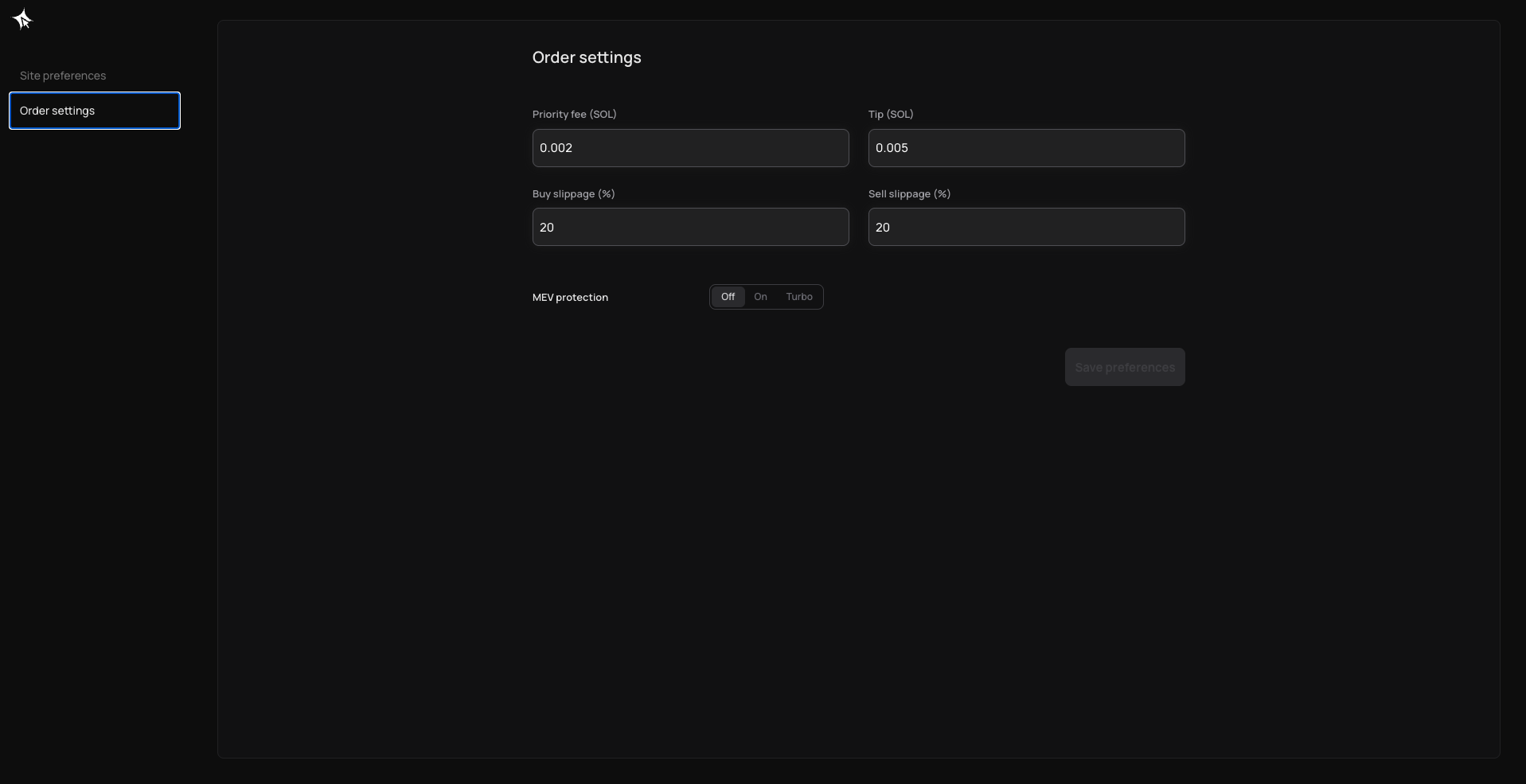
* **Slippage:** set max slippage tolerance per trade (default 20%)
* **MEV protection:** choose MEV protection mode — Off, Turbo, or Secure
* **Language:** switch bot language
* **UI buttons:** customize which buttons appear on the home screen


# Trading

The Click Spot Bot lets you trade any Solana token directly from Telegram. Find a token, execute a trade, and manage your positions — all without leaving the chat.

### How it works <a href="#feb3a1cb-3054-4195-b97e-e8d6f98e399e" id="feb3a1cb-3054-4195-b97e-e8d6f98e399e"></a>

1. **Find a token** — paste a contract address (CA) or search by name/ticker
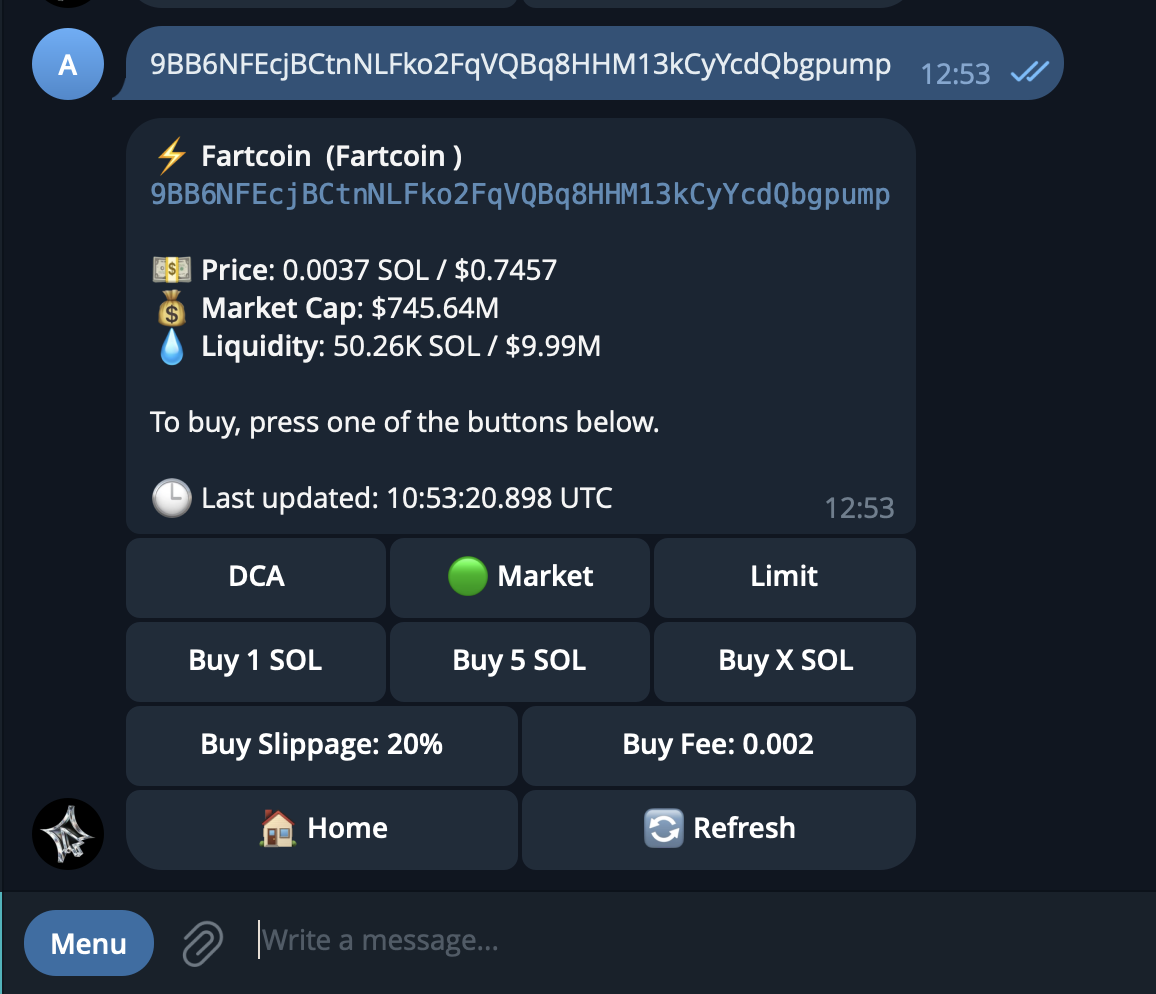
2. **Review the trading panel** — see price, market cap, liquidity, and volume
3. **Buy or sell** — use preset amounts or enter a custom value
4. **Track your positions** — monitor PnL, close positions, and withdraw profits

<figure><img src="https://953360368-files.gitbook.io/~/files/v0/b/gitbook-x-prod.appspot.com/o/spaces%2FvlAJauw5lS9CaoRy1bfd%2Fuploads%2FqpVqQzT7DDQh82gHLUfa%2FBildschirmfoto%202025-09-01%20um%2012.54.29.png?alt=media&amp;token=ebb561d9-c170-49e7-a8cd-558f1c8eaf40" alt=""><figcaption></figcaption></figure>

### In this section <a href="#id-42740c3b-ab14-4f96-8cdd-6d384707bee8" id="id-42740c3b-ab14-4f96-8cdd-6d384707bee8"></a>

| Page             | Description                                        |
| ---------------- | -------------------------------------------------- |
| Token Search     | Find tokens by CA, name, or ticker                 |
| Buy a Token      | Market buy with B1-B5 presets or custom SOL amount |
| Sell a Token     | Sell by percentage (S1-S3) or custom amount        |
| Manage Positions | View open positions, PnL, and generate PnL cards   |
| Withdraw         | Send SOL to an external Solana wallet              |


# Token Search

#### How to Find a Token <a href="#d02775c0-94e2-4c95-9e8e-553a5889da8d" id="d02775c0-94e2-4c95-9e8e-553a5889da8d"></a>

There are two ways to find a token in the Click Spot Trading Bot:

***

**1. Paste a Contract Address (CA)**

Paste any Solana token contract address directly into the bot chat. The bot immediately displays the token's trading panel with live data.

This takes priority over any ongoing dialogue — if you paste a CA mid-conversation, the bot switches to that token's trading panel.

> **Warning:** If you have Auto-Buy enabled in [Buy Settings](https://docs.click.trade/spot-trading-bot/settings/new-buy-settings), pasting a CA will immediately execute a buy order instead of just opening the trading panel. Make sure you understand your Auto-Buy settings before pasting addresses.

***

**2. Search by Name or Ticker**

Type a token name or ticker symbol (e.g., "SOL", "BONK", "JUP") into the bot chat. The bot searches its index and returns matching results. Select the correct token from the list to open its trading panel.

> **Note:** Very new or recently launched tokens may not appear in search results yet. If you cannot find a token by name, use its contract address instead.

***

#### Trading Panel <a href="#f46bb213-cc7c-42ed-891e-b8e83adf8c92" id="f46bb213-cc7c-42ed-891e-b8e83adf8c92"></a>

Once you find a token, the bot displays the trading panel with:

* **Token name, ticker, and DEX source**
* **Market cap** — current and all-time high (ATH)
* **Price** — in both SOL and USD
* **Liquidity**
* **24h trading volume**
* **Order type tabs** — Market / Limit / DCA

From here you can proceed to buy or sell. See [Buy a Token](https://docs.click.trade/spot-trading-bot/buy-a-token/buy-a-token) for next steps.


# Buy a Token

#### How to Buy a Token <a href="#id-2fc42650-e01a-403b-9d4f-005b4b115dc3" id="id-2fc42650-e01a-403b-9d4f-005b4b115dc3"></a>

There are several ways to buy a token using the Click Spot Trading Bot. The most common flow is pasting a contract address, reviewing the trading panel, and tapping a buy preset.

***

#### Step 1: Find a Token <a href="#id-308026a6-2234-4be1-b7fb-c5616adfefe7" id="id-308026a6-2234-4be1-b7fb-c5616adfefe7"></a>

Paste a Solana token contract address (CA) directly into the bot chat, or use the token search feature to find a token by name or ticker. See [Token Search](https://docs.click.trade/spot-trading-bot/buy-a-token/new-token-search) for details.

Once the bot recognizes a token, it opens the **Trading Panel**.

***

#### Step 2: Review the Trading Panel <a href="#id-1ea17bc0-1749-4d0c-8d01-360d3734fdf0" id="id-1ea17bc0-1749-4d0c-8d01-360d3734fdf0"></a>

The trading panel displays live token data:

* **Token name, ticker, and DEX source**
* **Market cap** — current and all-time high (ATH)
* **Price** — in both SOL and USD
* **Liquidity**
* **24h trading volume**

At the top of the panel you will see three order-type tabs: **Market**, **Limit**, and **DCA**. To execute an instant buy, stay on the Market tab.

***

#### Step 3: Choose Your Buy Amount <a href="#id-7e6cb5b7-dbe0-4eff-a378-c5c03041db62" id="id-7e6cb5b7-dbe0-4eff-a378-c5c03041db62"></a>

The Market tab shows your **Buy Presets** (B1 through B5). These are quick-buy buttons configured in your [Buy Settings](https://docs.click.trade/spot-trading-bot/settings/new-buy-settings). The defaults are:

| Preset | Amount   |
| ------ | -------- |
| B1     | 0.1 SOL  |
| B2     | 0.25 SOL |
| B3     | 0.5 SOL  |
| B4     | 1 SOL    |
| B5     | 5 SOL    |

You can also tap **Buy X SOL** to enter a custom amount.

***

#### Step 4: Confirm and Execute <a href="#id-9b97bb89-f397-4f90-a9b0-33ddfe299d1a" id="id-9b97bb89-f397-4f90-a9b0-33ddfe299d1a"></a>

Tap a preset button or confirm your custom amount. The bot validates your trading intent, checks your SOL balance, and submits the swap. A 1% swap fee is applied to the trade.

**What is "trading intent"?** The first time you execute a trade, the bot asks you to confirm that you understand the risks of trading. This is a one-time approval that enables future trades without repeated prompts.

The bot shows a progress indicator (sending → confirmed / failed) and provides a Solscan transaction link when complete.

***

#### `/buy` Command Shortcut <a href="#id-901d2294-bb3d-4c07-afed-b0c1f64c89ec" id="id-901d2294-bb3d-4c07-afed-b0c1f64c89ec"></a>

You can also buy directly using the command:

```
/buy <amount_in_SOL> <token_CA>
```

#### Auto-Buy <a href="#a89cc831-2775-4598-bd67-f07e65af3caa" id="a89cc831-2775-4598-bd67-f07e65af3caa"></a>

When Auto-Buy is enabled in [Buy Settings](https://docs.click.trade/spot-trading-bot/settings/new-buy-settings), pasting a valid contract address will automatically execute a buy for your configured Auto-Buy amount — without showing the trading panel first.

> **Warning:** Auto-Buy executes immediately when you paste a CA. Make sure you understand this behavior before enabling it. Safety guardrails are in place (rate limit of 1 buy per 10 seconds, daily spend cap of 10 SOL, will not re-buy tokens you already hold, only works in private chat), but exercise caution. See [Buy Settings](https://docs.click.trade/spot-trading-bot/settings/new-buy-settings) for full details.


# Sell a Token

#### How to Sell a Token <a href="#id-3b5b7a89-0c98-4512-b5ab-9830ebdf4648" id="id-3b5b7a89-0c98-4512-b5ab-9830ebdf4648"></a>

You can sell tokens from the Positions screen, from the trading panel, or using the `/sell` command.

***

#### Method 1: Sell from Positions <a href="#id-6bc7b7db-933d-47fd-a7e0-c0541409cda9" id="id-6bc7b7db-933d-47fd-a7e0-c0541409cda9"></a>

1. Tap **Positions** on the home screen (or send `/positions`)
2. Navigate to the token you want to sell
3. Choose a sell option:
   * **Sell Initial** — sells the number of tokens equal to your original purchase amount (based on the SOL you spent at the time of buy), effectively recovering your initial investment at current prices
   * **Sell 100%** — sells your entire position
   * **Sell X%** — enter a custom percentage to sell
4. The bot validates your token balance, submits the sell transaction, and shows the result with a Solscan link

***

#### Method 2: Sell from Trading Panel <a href="#id-6ec315f5-26c3-4052-89ee-cea992a7b0b1" id="id-6ec315f5-26c3-4052-89ee-cea992a7b0b1"></a>

1. Paste the token's contract address into the bot chat
2. The trading panel opens — scroll to the Sell section
3. Use the **Sell Presets** (S1 through S3), which default to:
   * S1: 25%
   * S2: 50%
   * S3: 100%
4. These presets are configurable in [Sell Settings](https://docs.click.trade/spot-trading-bot/settings/new-sell-settings)

***

#### Method 3: `/sell` Command <a href="#id-6b5e4f5f-726e-43f1-9074-3207cd41007f" id="id-6b5e4f5f-726e-43f1-9074-3207cd41007f"></a>

Use the command to sell directly:

```
/sell <percentage>% <token_CA>
```

#### Fees and Slippage <a href="#id-79349c12-8284-4102-88ed-21d2be254c10" id="id-79349c12-8284-4102-88ed-21d2be254c10"></a>

A 1% swap fee applies to all sell orders. Your **Sell Slippage** setting (default: 20%) controls the maximum price deviation allowed. Both are configurable in [Sell Settings](https://docs.click.trade/spot-trading-bot/settings/new-sell-settings).

***

#### Auto PnL Card <a href="#id-237d1fdc-5169-4433-9050-11c557306984" id="id-237d1fdc-5169-4433-9050-11c557306984"></a>

When you sell 100% of a position (balance goes to zero), the bot automatically generates a realized PnL card showing your trade performance.

> 💡 **Tip:** You can disable Auto PnL Cards in Trading Settings if you prefer not to receive them. You can still generate PnL cards manually from the Positions screen at any time.


# Manage Positions

#### Viewing Your Positions <a href="#e1ede599-4952-4d53-a76d-f9c48a3d2d66" id="e1ede599-4952-4d53-a76d-f9c48a3d2d66"></a>

Open your positions by tapping **Positions** on the home screen or sending the `/positions` command. This screen shows all tokens you currently hold.

<figure><img src="https://953360368-files.gitbook.io/~/files/v0/b/gitbook-x-prod.appspot.com/o/spaces%2FvlAJauw5lS9CaoRy1bfd%2Fuploads%2FcjgscW9If2KpYOiExnR5%2FBildschirmfoto%202025-08-30%20um%2011.07.17.png?alt=media&amp;token=afc014ed-5a2f-45fc-8209-fa595147a25a" alt=""><figcaption></figcaption></figure>

***

#### Position Details <a href="#id-5077c651-346e-4c35-823e-9966b86e9212" id="id-5077c651-346e-4c35-823e-9966b86e9212"></a>

Each position displays:

* **Token name and ticker**
* **Value** — in both SOL and USD
* **PnL %** — unrealized profit/loss percentage
* **Market cap** — current market capitalization
* **Price** — current token price
* **Contract link** — a Solscan link to the token's contract address for on-chain verification

***

#### PnL Cards <a href="#id-1f67b953-f3c7-44fc-a47b-b5a82f0dbd45" id="id-1f67b953-f3c7-44fc-a47b-b5a82f0dbd45"></a>

Each position includes a **PnL Card** button that generates a shareable image card showing your trade performance (entry price, current price, PnL, and other stats).

When you sell 100% of a position, the bot automatically generates a realized PnL card if **Auto PnL Card** is enabled in [Sell Settings](https://docs.click.trade/spot-trading-bot/settings/new-sell-settings).

***

#### Navigation <a href="#id-2cfe3ebd-db97-4e5d-99c1-1d6afca8e6c0" id="id-2cfe3ebd-db97-4e5d-99c1-1d6afca8e6c0"></a>

* **Previous / Next** — browse through your positions
* **Refresh** — update position data with live prices
* **Home** — return to the home screen

***

#### Empty State <a href="#id-8406e9c6-94c3-4371-9a5e-689445938524" id="id-8406e9c6-94c3-4371-9a5e-689445938524"></a>

If you have no open positions, the bot displays: "Paste a token address to start a trade."

***

#### Portfolio Value <a href="#e2eff3fe-cf2f-4ad2-9a54-0888130c52e9" id="e2eff3fe-cf2f-4ad2-9a54-0888130c52e9"></a>

Your total portfolio value (net worth across all held tokens plus SOL balance) is shown at the **bottom** of the Positions screen.


# Withdraw

Withdraw SOL from your Click wallet to any external Solana address.

### How to withdraw <a href="#id-36be3f19-8b7b-433f-8153-40d251ca2cf6" id="id-36be3f19-8b7b-433f-8153-40d251ca2cf6"></a>

1. **Open the withdrawal screen** — tap **Withdraw** in the `/wallet` menu
2. **Enter destination address** — paste the Solana wallet address you want to send to
3. **Enter amount** — specify how much SOL to withdraw
4. **Review and confirm** — check the destination, amount, and estimated network fee, then confirm

### Key details <a href="#id-5e9e566b-5d18-4dfb-88e9-7ca9b02c023f" id="id-5e9e566b-5d18-4dfb-88e9-7ca9b02c023f"></a>

* **Network:** Solana only
* **Token:** SOL only. To withdraw other tokens, sell them first via `/positions` , then withdraw SOL.
* **Network fee:** Standard Solana fee (< $0.01)
* **Speed:** Transactions typically confirm within seconds
* **No minimum withdrawal** (subject to network fee coverage)

### Safety <a href="#id-185d6e9a-f118-4887-b440-3d63ae01a0ca" id="id-185d6e9a-f118-4887-b440-3d63ae01a0ca"></a>

> ⚠️ **Double-check the destination address before confirming.** Transactions on Solana are irreversible.
>
> 💡 **TIP:** Send a small test amount first when withdrawing to a new address.


# Order Types

## Order Types <a href="#id-3f929e4d-0dd4-4dcb-bf42-895bf959c14b" id="id-3f929e4d-0dd4-4dcb-bf42-895bf959c14b"></a>

Click supports multiple order types to fit different trading strategies. On the trading panel, select between Market, Limit, or DCA.

| Order Type | Description                                                                   | Best for                                      |
| ---------- | ----------------------------------------------------------------------------- | --------------------------------------------- |
| **Market** | Instantly swap at the current price                                           | Quick entries and exits                       |
| **Limit**  | Set a trigger (price, market cap, % change, or multiplier) to automate trades | Sniping price targets, auto-selling at profit |
| **DCA**    | Spread buys or sells across multiple transactions over time                   | Reducing price impact, averaging in or out    |


# Limit Orders

#### What Are Limit Orders? <a href="#id-7b8052a5-af53-4962-b98a-e5fa3e50f7b0" id="id-7b8052a5-af53-4962-b98a-e5fa3e50f7b0"></a>

Limit orders let you set a target price condition for buying or selling a token. When the condition is met, the order executes automatically. This is useful when you want to enter or exit a position at a specific price without watching the market.

***

#### Limit Buy <a href="#id-27097cde-1d0e-468e-be2f-4cbe34ec0d79" id="id-27097cde-1d0e-468e-be2f-4cbe34ec0d79"></a>

1. Open the trading panel for a token (paste CA or search)
2. Select the **Limit** tab
3. Enter the amount of SOL you want to spend
4. Set a trigger condition:
   * **Market Cap** — triggers when market cap reaches a threshold (e.g., 2M)
   * **Price in USD** — triggers at a specific USD price (e.g., $0.05)
   * **Multiple** — triggers at a price multiple from current (e.g., 5x or 0.5x)
   * **Percentage change** — triggers at a percentage move (e.g., +5% or -5%)
5. Confirm the order

***

#### Limit Sell <a href="#id-616ba47b-eac4-4296-bf7c-99a0b36d9624" id="id-616ba47b-eac4-4296-bf7c-99a0b36d9624"></a>

1. Open the trading panel for a token you hold, or navigate from Positions
2. Select the **Limit** tab
3. Enter the token amount or percentage to sell
4. Set a trigger condition (same options as limit buy)
5. Confirm the order

***

#### Order Behavior and Specifications <a href="#bf46eaad-f49d-4505-be68-09e998f4e2b6" id="bf46eaad-f49d-4505-be68-09e998f4e2b6"></a>

| Property              | Detail                                                                                                                                                                                                                           |
| --------------------- | -------------------------------------------------------------------------------------------------------------------------------------------------------------------------------------------------------------------------------- |
| **Slippage**          | Uses your Buy Slippage or Sell Slippage setting from [Buy Settings](https://docs.click.trade/spot-trading-bot/settings/new-buy-settings) / [Sell Settings](https://docs.click.trade/spot-trading-bot/settings/new-sell-settings) |
| **Expiration**        | Good-Til-Cancelled (GTC) — orders remain active until they execute or you cancel them. There is no automatic expiry.                                                                                                             |
| **Max active orders** | No limit — you can have as many active limit orders as you want                                                                                                                                                                  |
| **Partial fills**     | Supported at the protocol level. However, partial fill notifications are not surfaced in Telegram — you will only be notified when an order fully executes or is cancelled.                                                      |
| **Fee**               | 1% swap fee per execution (same as market orders)                                                                                                                                                                                |

***

#### Managing Limit Orders <a href="#c5bb29e7-66ca-49d5-b801-db67cbecc04b" id="c5bb29e7-66ca-49d5-b801-db67cbecc04b"></a>

* View all active limit orders from the home screen via the **Limit Orders** section
* Each order shows the token, trigger condition, amount, and status
* You can **cancel** any active order at any time
* Orders execute automatically when the trigger condition is met

***

#### Tips <a href="#e35f67cb-b237-4818-8779-b77207b8da26" id="e35f67cb-b237-4818-8779-b77207b8da26"></a>

* Limit orders use the same slippage settings as your market orders. If a limit order fails due to slippage, it will retry on the next price check.
* Combine limit orders with your regular trading — for example, set a limit sell at your take-profit target while holding a position.


# DCA Orders

#### What Is DCA? <a href="#id-301b5842-52cd-4d0b-a41d-4ed2b2d6dcbc" id="id-301b5842-52cd-4d0b-a41d-4ed2b2d6dcbc"></a>

Dollar-Cost Averaging (DCA) lets you split a buy or sell into multiple smaller orders executed at regular intervals. This helps reduce the impact of short-term price volatility by spreading your entry or exit over time.

A 1% swap fee applies to each individual DCA execution (not to the total DCA amount).

***

#### DCA Buy <a href="#id-83a65a29-1df2-48b8-b0d8-9090d9f185fc" id="id-83a65a29-1df2-48b8-b0d8-9090d9f185fc"></a>

1. Open the trading panel for a token (paste CA or search)
2. Select the **DCA** tab
3. Enter the **total SOL amount** you want to spend
4. Set the **interval** — how often each order executes. Enter a number followed by a time suffix:
   * `s` for seconds (e.g., `45s`)
   * `m` for minutes (e.g., `1m`, `5m`)
   * `h` for hours (e.g., `3h`)
   * `d` for days (e.g., `1d`)
5. Set the **number of swaps** — how many individual buy orders to split into (minimum 1, maximum 255)
6. Confirm the DCA order

The total SOL is divided equally across the number of swaps. For example, 1 SOL over 10 swaps means 0.1 SOL per execution.

***

#### DCA Sell <a href="#fda37231-08a0-4080-b7c7-af1dfc5f99e3" id="fda37231-08a0-4080-b7c7-af1dfc5f99e3"></a>

1. Open the trading panel for a token you hold
2. Select the **DCA** tab, then choose the Sell direction
3. Enter the token amount or percentage to sell
4. Set the interval and number of swaps (same options as DCA buy)
5. Confirm the DCA order

***

#### Slippage and Fees <a href="#id-9beaaf3c-4bb3-4a16-b9f2-f9291f9d29c4" id="id-9beaaf3c-4bb3-4a16-b9f2-f9291f9d29c4"></a>

* Each individual DCA execution uses your current slippage setting from [Buy Settings](https://docs.click.trade/spot-trading-bot/settings/new-buy-settings) or [Sell Settings](https://docs.click.trade/spot-trading-bot/settings/new-sell-settings)
* The 1% swap fee is charged per execution, not on the total DCA amount

***

#### Insufficient Balance Behavior <a href="#ab57e438-44b0-4417-878e-15926ec8db81" id="ab57e438-44b0-4417-878e-15926ec8db81"></a>

> **Warning:** If your SOL balance runs out during a DCA buy schedule, the remaining orders are automatically cancelled. There is no pause or retry — you will receive a notification and will need to create a new DCA order after topping up your balance.

This also applies to DCA sells — if you no longer hold enough tokens (for example, if you sold some manually), the remaining sell DCA orders are cancelled.

***

#### Managing DCA Orders <a href="#id-943d223f-6075-4eac-9c7b-50e63e7a61a9" id="id-943d223f-6075-4eac-9c7b-50e63e7a61a9"></a>

* From the home screen, navigate to **DCA Orders** to view all active DCA schedules
* Each entry shows the token, progress (e.g., 3/10 swaps completed), interval, and remaining amount
* You can **cancel** any individual DCA order or cancel all at once
* Completed DCA orders disappear from the active list automatically


# Features

Beyond basic trading, the Click Spot Bot offers tools to automate your strategy and share your results.

### In this section <a href="#id-80f0e47a-6fec-435b-be4c-68165c30db0d" id="id-80f0e47a-6fec-435b-be4c-68165c30db0d"></a>

| Copy Trading | Mirror trades from any Solana wallet automatically |
| ------------ | -------------------------------------------------- |
| Price Alerts | Get notified when a token hits your target price   |
| Click Squads | Coming soon                                        |


# Copy Trading

### What Is Copy Trading? <a href="#aec9738d-c5f5-4896-ac4f-5069843b041a" id="aec9738d-c5f5-4896-ac4f-5069843b041a"></a>

Copy trading automatically mirrors trades from any Solana wallet. When your target wallet buys or sells a token, your bot executes the same trade using your configured settings.

* Copy trading only executes when the target wallet trades.
* A 1% swap fee applies to each copied trade.
* Not all wallet types are suitable for copying — see the Sniper Warning below.

***

### Getting Started <a href="#id-5413f00d-cbbb-4812-b642-0fddfce7719f" id="id-5413f00d-cbbb-4812-b642-0fddfce7719f"></a>

1. Tap **Copytrading** on the home screen
2. Tap **New** to add a wallet to copy
3. Paste the **Solana wallet address** you want to copy
4. Assign a **Label** (name tag) for easy identification when managing multiple strategies
5. Select a copy mode:
   * **Standard** — mirrors both buys and sells from the target wallet
   * **Buy Only** — mirrors buy transactions only, ignoring sells. Use this when you want to discover tokens a trader is buying but manage your own exit strategy.
6. Configure your settings (see below)
7. Tap **Add** to activate

***

### Configuration <a href="#id-01eebaa6-dbbb-43e6-9b38-21c98e00f38f" id="id-01eebaa6-dbbb-43e6-9b38-21c98e00f38f"></a>

#### Core Settings <a href="#id-7ffc6507-126a-4947-a3f8-57ccc22eb32b" id="id-7ffc6507-126a-4947-a3f8-57ccc22eb32b"></a>

| **Label**         | Name tag to identify this copy trade                                                                                             |
| ----------------- | -------------------------------------------------------------------------------------------------------------------------------- |
| **Target Wallet** | Solana wallet address to copy                                                                                                    |
| **Buy Amount**    | How much to spend per copied buy — choose a percentage of the target's buy or a fixed SOL amount                                 |
| **Copy Sells**    | Toggle on to mirror sell transactions (on in Standard mode, off in Buy Only mode)                                                |
| **Slippage**      | Price tolerance for copied trades. Default: **25%** — higher than the standard 20% to account for execution delay when mirroring |
| **Tip**           | Validator tip for faster execution. Higher activity wallets may require a higher tip for timely execution                        |

#### Filters (Advanced Options) <a href="#id-639ab61d-8b92-4e78-9ce1-7dc0bd567189" id="id-639ab61d-8b92-4e78-9ce1-7dc0bd567189"></a>

| **Min Market Cap**         | Only copy trades for tokens above this market cap                 |
| -------------------------- | ----------------------------------------------------------------- |
| **Max Market Cap**         | Only copy trades for tokens below this market cap                 |
| **Min Liquidity**          | Only copy trades for tokens with at least this much liquidity     |
| **Buy Once Per Token**     | Skip additional buys for tokens you already hold                  |
| **Require Renounced Mint** | Only copy tokens where mint authority has been renounced          |
| **Max Buy Per Token**      | Maximum SOL to spend on any single token across all copied trades |

***

### Sniper Warning <a href="#id-5eac06ed-a644-49f8-b822-0479117610c6" id="id-5eac06ed-a644-49f8-b822-0479117610c6"></a>

> ⚠️ **Avoid copying sniper bots or custom program wallets.** These wallets execute trades through specialized contracts that the copy trading system cannot replicate — resulting in failed transactions or unexpected behavior. Stick to wallets that trade through standard DEX interfaces.

***

### Supported Pools <a href="#b78014ad-dc5b-42f1-833c-881f59dc3ec9" id="b78014ad-dc5b-42f1-833c-881f59dc3ec9"></a>

Copy trading works with the following DEX pools:

* Pumpswap
* Raydium AMM
* Raydium CLMM (Concentrated Liquidity)
* Meteora
* Jupiter-routed swaps

If the target wallet trades on an unsupported pool, that trade will be skipped.

***

### Managing Strategies <a href="#c80d7cec-1b9c-4d14-ac2e-e3d1f2b99e3f" id="c80d7cec-1b9c-4d14-ac2e-e3d1f2b99e3f"></a>

Each copy trade shows its status:

* 🟢 **Running** — actively mirroring the target wallet
* 🟠 **Inactive** — paused or disabled

From the **Copytrading** screen you can:

* **View** all active strategies with wallet name, mode, and trade count
* **Pause** or **resume** any strategy
* **Edit** settings (slippage, amount, filters)
* **Delete** — permanently remove a copy trade

If your SOL balance is insufficient to execute a copied trade, that trade is skipped (no partial execution or retry).

***

### Troubleshooting <a href="#f02059c9-6991-4edb-9f34-b00ef9e82476" id="f02059c9-6991-4edb-9f34-b00ef9e82476"></a>

| Trades not copying  | Check that the strategy is 🟢 running, wallet address is correct, and the target is trading on a supported pool                                                                                                |
| ------------------- | -------------------------------------------------------------------------------------------------------------------------------------------------------------------------------------------------------------- |
| Failed transactions | Target wallet may be using a custom program or sniping bot — consider removing it                                                                                                                              |
| Delayed execution   | Copy trades execute after the target transaction confirms on-chain. For fast-moving tokens, the higher default slippage (25%) helps accommodate price differences. Increasing your tip can also improve speed. |
| Unexpected tokens   | Tighten your filters — set min market cap, min liquidity, or enable "Require Renounced Mint"                                                                                                                   |


# Price Alerts

Set price alerts to get notified when a token reaches your target price.

### How to create an alert <a href="#dc6651ca-ceda-496a-a603-f4fa63da14a7" id="dc6651ca-ceda-496a-a603-f4fa63da14a7"></a>

1. **Use the** `/alert` command — type `/alert` to open the alert creation flow
2. **Select or paste a token** — enter the token contract address (CA) or search by name
3. **Set your target price** — choose a price above or below the current price
4. **Confirm** — the bot saves your alert and monitors the price

You can also create alerts inline: type `alert SOL 200` directly in chat.

### Managing alerts <a href="#ef189be2-997c-4ab2-be3b-c9f888afbbbf" id="ef189be2-997c-4ab2-be3b-c9f888afbbbf"></a>

* **View all alerts** — use `/alerts` to see your active price alerts
* **Delete an alert** — select an alert and tap Delete
* **Modify an alert** — delete the existing alert and create a new one with updated parameters

### Key details <a href="#id-72a9ada3-84f0-4ca2-863b-1c15195c2dbb" id="id-72a9ada3-84f0-4ca2-863b-1c15195c2dbb"></a>

* Alerts are **one-time triggers** — once the target price is hit, the alert fires and is removed
* The bot sends you a **notification message** when your alert triggers
* Supports any token tradeable on the Spot Bot
* No limit on the number of active alerts


# Click Squads (Coming Soon)

#### What Are Click Squads?

Click Squads is a group trading feature that lets you add the Click bot to a Telegram group chat, follow a lead trader, and mirror their trades collectively as a group.

***

#### Planned Features <a href="#id-5c4d0938-f339-4c66-9b34-119bfec1c0f2" id="id-5c4d0938-f339-4c66-9b34-119bfec1c0f2"></a>

**Group Copy Trading**

* Add the Click bot to a group chat
* Designate a lead trader for the group to follow
* Group members mirror the lead trader's buys automatically
* Configure copy parameters: percentage of the lead's buy amount, or a fixed SOL amount per trade

**Profit Sharing**

A profit share model is planned where lead traders earn a share of gains from copied trades. The specific thresholds and percentages have not been finalized.

> **Note:** The profit share model (including trigger thresholds and percentage splits) is not confirmed and may change before launch.

**Squads Scanner**

A group chat analytics tool is planned that provides token metrics, trend analysis, and alerts within the group context — helping squad members make informed decisions together.

***

#### Coming Soon <a href="#b7480b35-e457-4d8c-8e05-341573c60c80" id="b7480b35-e457-4d8c-8e05-341573c60c80"></a>

It will be unlocked in a future update. Watch for announcements in the official Click channels.&#x20;


# Bridge

Bridging in Click Bot lets you seamlessly move your tokens ( SOL, ETH, BNB or USDC) from one blockchain to another right from the chat. No apps, no hassle. It's secure, fast and handles fees transparently.&#x20;

Here's how it works:<br>

1. **Start the Bridge:** Type /bridge in the bot chat, or tap the "Bridge" button from the main menu. You'll see a simple prompt: "What token and amount? (e.g., 1.5 SOL)"
2. **Pick Your Chains:** Enter your details (token, amount, origin chain like Solana, destination like Ethereum). The bot shows an inline keyboard with popular chain options just click to select (e.g., buttons for Solana, ETH, Base, BSC).
3. **Confirm & Send:** Review the preview (expected amount after fees, gas estimate). Hit "Confirm" to sign the transaction via your connected wallet (we use secure session signing no keys stored).
4. **Track & Done:** The bot sends real-time updates, such as:

* &#x20;*Transfer started*
* *Relaying across chains*
* *Funds arrived!*


# Advanced Strategies

Elevate your trading game with Advanced Strategies: customizable automation  that trigger actions based on your trades, market conditions, or portfolio events. No more manual monitoring; set it once, save it forever, and let the bot handle the rest.&#x20;

### Why Use Advanced Strategies?

* Automation Magic: Define "if-this-then-that" rules ( buy triggers → auto-set protections). Quick and convenient.
* Risk Management Built-In: Enforce stop-losses, take-profits, or scaling out to protect gains.

Reusability: Save strategies as templates for one-click reuse across tokens or chains.


# Creating & Saving Strategy

### How to Create and Save a Strategy

1. Access the Menu: In the bot, type /strategies or tap the "Strategies" button from the main dashboard. You'll land in a clean editor with pre-filled templates.
2. Create:
3. Trigger: What starts it? (Manual buy, Limit order).
4. Actions: Chain commands like "Set 10% stop-loss", "Add 100% take-profit".
5. Conditions: Add filters ("Only on Solana").
6. Save & Name: Give it a name like "Aggressive Exit" and save to your profile. Strategies auto-sync across devices and persist through updates.
7. Activate: Toggle it on for a token/chain via advanced strategy menu. Deactivate anytime with one click.

#### Example: Post-Buy Protection Strategy

**Name:** "Safe Gains Lock"

**Trigger:** After executing a buy order (any size).

**Actions:**

* Immediately set a 10% stop-loss below entry price (trails if price rises).
* Set a 50% take-profit target (sells half at +100%, lets the rest ride).
* Optional: Notify via Telegram alert: "Hit take-profit on $SOL—secured 50% gains!"

**In Action:** You buy 1 SOL at $150. Bot auto-adds SL at $135 and TP at $300. If SOL moons to $300, it sells 0.5 SOL, banks $150 profit, and adjusts SL to breakeven for the rest.&#x20;

Gains protected - upside unlimited.

<br>


# Settings

## Settings <a href="#a022062c-efc8-4904-94b7-563eff76b512" id="a022062c-efc8-4904-94b7-563eff76b512"></a>

Customize how the Click Spot Bot executes your trades. Access all settings via `/settings` in @clickdottrade\_bot.

### In this section <a href="#id-1625e012-0336-4761-a2c4-dfd73ca71da7" id="id-1625e012-0336-4761-a2c4-dfd73ca71da7"></a>

| Trading Settings | Slippage, presets, tip, MEV protection, Auto-Buy, Auto PnL |
| ---------------- | ---------------------------------------------------------- |
| General Settings | Language, username, UI personalization                     |


# Trading Settings

## Trading Settings <a href="#d7617ef3-4a7f-4ec7-9eab-b9a046d9cc76" id="d7617ef3-4a7f-4ec7-9eab-b9a046d9cc76"></a>

All trading-related settings are accessible via `/settings` in @clickdottrade\_bot. These control how your trades execute — slippage tolerance, speed, protection, and preset amounts.

***

### Buy Presets <a href="#c243a0b2-fb01-4dbf-a74b-8b7dbcb94b20" id="c243a0b2-fb01-4dbf-a74b-8b7dbcb94b20"></a>

Quick-buy amounts in SOL. Tap a preset button to instantly buy that amount.

| Preset | Default  |
| ------ | -------- |
| B1     | 0.1 SOL  |
| B2     | 0.25 SOL |
| B3     | 0.5 SOL  |
| B4     | 1 SOL    |
| B5     | 5 SOL    |

You can customize each preset to any SOL amount.

***

### Sell Presets <a href="#id-7b5789bf-7fe8-496f-b6ef-dffbe07271c0" id="id-7b5789bf-7fe8-496f-b6ef-dffbe07271c0"></a>

> Quick-sell percentages of your current position. Tap a preset to sell that portion. You can toggle between **Compact**, **Small**, and **Large** UI modes to display more or fewer sell preset buttons on the trading panel.

***

### Slippage <a href="#d8051249-342e-4a7c-9c24-9040eea9f240" id="d8051249-342e-4a7c-9c24-9040eea9f240"></a>

Maximum price deviation you are willing to accept on a trade. If the price moves beyond your slippage tolerance, the transaction is automatically cancelled and no funds are lost.

| Setting       | Default        | Description                 |
| ------------- | -------------- | --------------------------- |
| Buy Slippage  | 20% (2000 bps) | Max slippage on buy orders  |
| Sell Slippage | 20% (2000 bps) | Max slippage on sell orders |

> ℹ️ The default slippage of 20% is set high to accommodate volatile meme tokens. Lower this for established tokens (e.g. SOL, BONK) to reduce price impact.

Slippage applies to all order types: market, limit, DCA, and copy trading.

***

### Priority Tip <a href="#dc5f698a-bb4f-4ac0-9757-e63d9ec5b4b0" id="dc5f698a-bb4f-4ac0-9757-e63d9ec5b4b0"></a>

A validator tip added to every transaction for faster block inclusion. Routed through the MEV protection layer.

| Setting | Default   | Min       |
| ------- | --------- | --------- |
| Tip     | 0.005 SOL | 0.001 SOL |

Higher tip = faster execution, especially during network congestion. This is separate from Solana's base transaction fee.

***

### MEV Protection <a href="#af1c7e68-1f0f-4318-ae58-2e67c692677b" id="af1c7e68-1f0f-4318-ae58-2e67c692677b"></a>

Protects your trades from front-running and sandwich attacks by routing transactions through a secure submission layer.

| Mode       | Description                                                                          |
| ---------- | ------------------------------------------------------------------------------------ |
| **Off**    | No MEV protection. Fastest execution, but vulnerable to MEV attacks.                 |
| **Turbo**  | Standard MEV protection via secure transaction routing. Recommended for most trades. |
| **Secure** | Maximum MEV protection. May have slightly higher latency. Best for large trades.     |

**Default: Off**

> 💡 **TIP:** Enable Turbo or Secure mode when trading high-volume or newly launched tokens where MEV attacks are common.

No additional cost for any MEV mode — the only cost is your configured Tip.

***

### Auto-Buy <a href="#id-015c2b49-2616-49b7-a015-d080ef5eb262" id="id-015c2b49-2616-49b7-a015-d080ef5eb262"></a>

When enabled, pasting a token contract address (CA) in chat automatically executes a buy order without manual confirmation.

| Setting         | Default |
| --------------- | ------- |
| Auto-Buy        | Off     |
| Auto-Buy Amount | 0 SOL   |

#### Safety guardrails: <a href="#id-059d3a6d-93d7-4881-9807-280192cc2c38" id="id-059d3a6d-93d7-4881-9807-280192cc2c38"></a>

* **Rate limit:** Max 1 auto-buy per 10 seconds
* **Daily cap:** 10 SOL maximum per day
* **No re-buys:** Will not auto-buy a token you already hold
* **Private chat only:** Auto-Buy only works in your direct chat with the bot
* **Optional confirmation:** Enable confirmation mode to review before execution

> ⚠️ **Auto-Buy executes trades immediately when you paste a CA. Use with caution.** Review the safety settings above before enabling.

***

### Auto PnL Card <a href="#c9b05511-3028-4f8f-9692-62bcf324c78e" id="c9b05511-3028-4f8f-9692-62bcf324c78e"></a>

Automatically generates a shareable PnL card when you fully close a position (sell 100%).

| Setting       | Default |
| ------------- | ------- |
| Auto PnL Card | On      |

You can disable this in settings if you prefer not to generate PnL cards automatically. You can still generate PnL cards manually from the Positions screen at any time.

***

### Settings Summary <a href="#id-44712c37-ac4c-4744-a357-35ceb54149b1" id="id-44712c37-ac4c-4744-a357-35ceb54149b1"></a>

| Setting              | Default                      | Scope                  |
| -------------------- | ---------------------------- | ---------------------- |
| Buy Presets (B1-B5)  | 0.1 / 0.25 / 0.5 / 1 / 5 SOL | Buy only               |
| Sell Presets (S1-S3) | 25% / 50% / 100%             | Sell only              |
| Buy Slippage         | 20% (2000 bps)               | Buy orders             |
| Sell Slippage        | 20% (2000 bps)               | Sell orders            |
| Tip                  | 0.005 SOL                    | All trades             |
| MEV Protection       | Off                          | All trades             |
| Auto-Buy             | Off / 0 SOL                  | Buy only               |
| Auto PnL Card        | On                           | Sell only (full close) |


# General Settings

#### General Settings <a href="#c756472f-339d-482e-a264-31ea00eb2a75" id="c756472f-339d-482e-a264-31ea00eb2a75"></a>

General Settings controls your bot interface preferences and profile. Access it from the home screen: **Settings > General Settings**.

***

#### Settings Reference <a href="#a15eb7a2-9136-4038-9d40-359d5e7cd391" id="a15eb7a2-9136-4038-9d40-359d5e7cd391"></a>

| Setting                | Description                                                                                                                                                                                                                                                  |
| ---------------------- | ------------------------------------------------------------------------------------------------------------------------------------------------------------------------------------------------------------------------------------------------------------ |
| **Language**           | Select the bot interface language. Changes all menus, buttons, and system messages to your chosen language.                                                                                                                                                  |
| **Click Username**     | Set your public trading username. This name appears on PnL cards you share and may be visible in leaderboards and social features. Choose a username that you are comfortable sharing publicly.                                                              |
| **UI Personalization** | UI Personalization: Adjust the interface layout and display options. Toggle between **Compact**, **Small**, and **Large** UI modes to control how many buy and sell preset buttons are visible on the trading panel — larger modes enable more sell buttons. |

***

#### Where to Find Other Settings <a href="#id-7135eb6c-5855-47e7-b371-e89d764e4da2" id="id-7135eb6c-5855-47e7-b371-e89d764e4da2"></a>

General Settings covers interface and profile options only. For trade execution settings, see:

* [**Trading Settings**](https://docs.click.trade/spot-trading-bot/settings/trading-settings) — Slippage, tip, MEV protection, buy presets (B1-B5), sell presets (S1-S3), Auto-Buy, Auto PnL Card

The **Auto PnL Card** toggle is located in Trading Settings, not in General Settings.


# Overview & Quick Start

Trade perpetual futures directly from Telegram, powered by Hyperliquid. Open leveraged long and short positions on 100+ assets, set stop-loss and take-profit, copy top traders, and broadcast your trades to your channels or groups, all without leaving the chat.

### 2. Quick Start <a href="#id-376054e5-a882-41a6-8437-426fdb0dc728" id="id-376054e5-a882-41a6-8437-426fdb0dc728"></a>

* **Step 1: Launch the bot** — Open @clickperps\_bot in Telegram and tap Start or send `/start`.
* **Step 2: Create your wallet** — A miniapp will open to set up your wallet. This is a one-time onboarding step. You will create your trading wallet and approve permissions in a single session.
* **Step 3: Deposit funds** — Send `/deposit` in the bot. You can deposit SOL on Solana or USDC on Arbitrum. Your deposit is automatically credited to your Hyperliquid perpetual trading account (SOL is auto-converted to USDC).
* **Step 4: Start trading** — `/long`, `/short`, `/positions`, `/balance`

### 3. Key features overview <a href="#id-71bfd48b-7316-4c04-bb34-dc23def38168" id="id-71bfd48b-7316-4c04-bb34-dc23def38168"></a>

Supported Assets, Open Long/Short, Close & Manage Positions, Stop-Loss & Take-Profit, Copy Trading, Broadcasting, Price Alerts.

### 4. Deposit <a href="#id-4b8fc1c0-041e-4154-b81f-221e570a1a79" id="id-4b8fc1c0-041e-4154-b81f-221e570a1a79"></a>

Send `/deposit` in the bot.

#### Option A: USDC or SOL on Solana <a href="#id-89e9aacb-f02b-4b2d-bfb0-cb568df2d02f" id="id-89e9aacb-f02b-4b2d-bfb0-cb568df2d02f"></a>

* **Supported chain:** Solana
* **Supported token:** USDC or SOL
* **How it works:** Send USDC or SOL on Solana to your deposit address. Your USDC or SOL is automatically credited to your Hyperliquid perpetual trading account. No manual bridging needed.
* **Timeline:** Solana confirms in seconds, then funds are automatically routed to Hyperliquid. Expect your balance to update within a few minutes.

#### Option B: USDC on Arbitrum <a href="#aba36292-4fe5-407d-ab39-71d4efe9d06a" id="aba36292-4fe5-407d-ab39-71d4efe9d06a"></a>

* **Supported chain:** Arbitrum
* **Supported token:** USDC
* **How it works:** Send USDC on Arbitrum to your EVM deposit address. Funds are credited directly to your Hyperliquid perpetual trading account.
* **Timeline:** Arbitrum confirms within 1-2 minutes.

> ⚠️ **IMPORTANT:** Only send SOL or USDC on Solana or USDC on Arbitrum. Sending USDC on Solana or other unsupported token/network combinations may result in lost funds.

> 💡 **TIP:** Send a small test amount first to verify the address before depositing larger amounts.

### 5. Withdrawal <a href="#ab778a5c-d9d6-4d08-a734-0d8e84d9ee4b" id="ab778a5c-d9d6-4d08-a734-0d8e84d9ee4b"></a>

Send `/withdraw` in the bot.

* **Supported chain:** Arbitrum only
* **Supported token:** USDC
* **Fee:** $1 USDC withdrawal fee per transaction (charged by Hyperliquid, regardless of amount)
* **How it works:**
  1. Select **Arbitrum** as destination
  2. Enter your Arbitrum wallet address (0x...)
  3. Choose amount: 25%, 50%, 75%, or custom percentage
  4. Review the confirmation screen showing amount, fee, and the amount you will receive, then confirm
* **Timeline:** Withdrawals typically process within a few minutes after confirmation.

> ⚠️ **Withdrawal is Arbitrum only.** Solana withdrawal is not currently supported.\
> ℹ️ To minimize fees, consider withdrawing larger amounts less frequently.

### 6. Important notes <a href="#id-0781540b-1729-4952-98ff-108fdefb001f" id="id-0781540b-1729-4952-98ff-108fdefb001f"></a>

* Deposits are accepted in SOL on Solana (auto-converted to USDC) or USDC on Arbitrum (direct). USDC on Solana is NOT supported.
* Withdrawals are sent on Arbitrum in USDC. A $1 USDC fee applies per withdrawal.
* Margin mode (Isolated or Cross) is selected when opening a position and cannot be changed afterward. Open positions can only be closed or reduced.


# Trading

Trade perpetual futures on 100+ assets directly from Telegram. Open leveraged long and short positions, set precise entry prices with limit orders, manage risk with stop-loss and take-profit, and choose your margin mode.

### In this section <a href="#c31508a7-465d-4e7f-b0e7-9bea2c531a58" id="c31508a7-465d-4e7f-b0e7-9bea2c531a58"></a>

| Page                     | Description                                                 |
| ------------------------ | ----------------------------------------------------------- |
| Supported Assets         | Crypto, equities, FX, and commodities available for trading |
| Open Long/Short          | Place a market or limit order to enter a position           |
| Order Types              | Market orders vs limit orders (GTC)                         |
| Close & Manage Positions | View, reduce, or close your open positions                  |
| Stop Loss & Take Profit  | Protect capital and lock in gains automatically             |
| Isolated vs Cross Margin | Understand margin modes and their risk                      |


# Supported Assets

### What You Can Trade <a href="#cb44cc82-12f8-4519-a671-9cdb7801f3df" id="cb44cc82-12f8-4519-a671-9cdb7801f3df"></a>

Click Perps Bot supports all perpetual markets listed on Hyperliquid, including HIP-3 markets provided by trade.xyz. This gives you access to crypto, stocks, indices, commodities, and FX pairs, all tradable 24/7 with leverage from a single USDC balance.

### Asset Categories <a href="#c3a8a886-8f2c-48d7-9567-b6ec302cc23d" id="c3a8a886-8f2c-48d7-9567-b6ec302cc23d"></a>

#### Crypto Perpetuals <a href="#bd0066d8-e689-4ce8-b511-4bc1e147aa4f" id="bd0066d8-e689-4ce8-b511-4bc1e147aa4f"></a>

BTC, ETH, SOL, HYPE, and all other Hyperliquid-listed pairs.

#### Stocks (via trade.xyz) <a href="#id-62838e6d-c411-46b2-81b4-f2d2259e3ba7" id="id-62838e6d-c411-46b2-81b4-f2d2259e3ba7"></a>

TSLA, NVDA, AAPL, GOOGL, META, MSFT, PLTR, and more. These trade as perpetual contracts on Hyperliquid through the HIP-3 standard.

#### Indices <a href="#be025bb2-89a6-4d46-ba6b-ecd9fbeae055" id="be025bb2-89a6-4d46-ba6b-ecd9fbeae055"></a>

XYZ100 (Nasdaq equivalent) and other index products available through trade.xyz.

#### Commodities <a href="#id-6c6a581e-5bbf-425a-b888-78953e849dfa" id="id-6c6a581e-5bbf-425a-b888-78953e849dfa"></a>

Gold, Silver, and other commodity markets available through trade.xyz.

#### FX Pairs <a href="#ee797c2f-1a6b-4aa1-9382-e3f36fa3f77c" id="ee797c2f-1a6b-4aa1-9382-e3f36fa3f77c"></a>

Foreign exchange pairs available through trade.xyz.

### How to Search and Trade <a href="#id-5065720c-a191-4c21-9142-431e60a47a28" id="id-5065720c-a191-4c21-9142-431e60a47a28"></a>

Type the asset name directly in a command. For example:

* `/long HYPE` — open a long on HYPE
* `/short BTC` — open a short on BTC
* `/long xyz:TSLA` — open a long on Tesla stock
* `/long xyz:GOLD` — open a long on Gold

> 💡 **TIP:** For stock, commodity, index, and FX markets, we humanized ticker for you.&#x20;

| `xyz:SILVER`    | Commodity | silver, Silver, SILVER                        |
| --------------- | --------- | --------------------------------------------- |
| `xyz:GOLD`      | Commodity | gold, Gold, GOLD                              |
| `xyz:CL`        | Commodity | crude oil, Crude Oil, Oil, oil, CL            |
| `xyz:COPPER`    | Commodity | copper, Copper, COPPER                        |
| `xyz:PLATINUM`  | Commodity | platinum, Platinum, PLATINUM                  |
| `xyz:PALLADIUM` | Commodity | palladium, Palladium, PALLADIUM               |
| `xyz:NATGAS`    | Commodity | natural gas, Natural Gas, NatGas, gas, NATGAS |
| `xyz:TSLA`      | Equity    | tesla, Tesla, TSLA                            |
| `xyz:NVDA`      | Equity    | nvidia, Nvidia, NVDA                          |
| `xyz:AAPL`      | Equity    | apple, Apple, AAPL                            |
| `xyz:AMZN`      | Equity    | amazon, Amazon, AMZN                          |
| `xyz:MSFT`      | Equity    | microsoft, Microsoft, MSFT                    |
| `xyz:GOOGL`     | Equity    | google, Google, Alphabet, GOOGL               |
| `xyz:META`      | Equity    | meta, Meta, Facebook, META                    |
| `xyz:NFLX`      | Equity    | netflix, Netflix, NFLX                        |
| `xyz:AMD`       | Equity    | amd, AMD                                      |
| `xyz:INTC`      | Equity    | intel, Intel, INTC                            |
| `xyz:ORCL`      | Equity    | oracle, Oracle, ORCL                          |
| `xyz:MU`        | Equity    | micron, Micron, MU                            |
| `xyz:TSM`       | Equity    | tsmc, TSMC, Taiwan Semi, TSM                  |
| `xyz:COIN`      | Equity    | coinbase, Coinbase, COIN                      |
| `xyz:MSTR`      | Equity    | microstrategy, MicroStrategy, Strategy, MSTR  |
| `xyz:PLTR`      | Equity    | palantir, Palantir, PLTR                      |
| `xyz:BABA`      | Equity    | alibaba, Alibaba, BABA                        |
| `xyz:RIVN`      | Equity    | rivian, Rivian, RIVN                          |
| `xyz:XYZ100`    | Index     | xyz100, XYZ100, Nasdaq 100, index             |

### No Separate Deposit Needed <a href="#id-4ac44da9-2929-4e92-9809-e4fc5cb67c9f" id="id-4ac44da9-2929-4e92-9809-e4fc5cb67c9f"></a>

All markets, including crypto and trade.xyz assets, use your single USDC balance. There is no need to deposit separately for different asset categories.


# Open Long/Short

### What is a Long Position <a href="#id-8aec553d-84b7-40a3-a58a-155d8819be78" id="id-8aec553d-84b7-40a3-a58a-155d8819be78"></a>

A long position profits when the price goes up. You are buying the asset with the expectation that its value will increase.

### What is a Short Position <a href="#id-3be7a7c2-32e1-4565-b2db-823aa9079cfe" id="id-3be7a7c2-32e1-4565-b2db-823aa9079cfe"></a>

A short position profits when the price goes down. You are selling the asset with the expectation that its value will decrease.

### How to Open a Position <a href="#b6a47ff3-46e0-44f6-b3b6-acdcfd06dbcd" id="b6a47ff3-46e0-44f6-b3b6-acdcfd06dbcd"></a>

#### Step 1: Start a trade and search for token ticker <a href="#id-3b2ae150-8ffc-4ec5-a87a-093bc182b37d" id="id-3b2ae150-8ffc-4ec5-a87a-093bc182b37d"></a>

Use `/long` or `/short` to begin.&#x20;

#### Step 2: View current price

The bot displays the current market price and your available margin.

#### Step 3: Select order type <a href="#f713fd22-76f1-47d4-892f-dbbc61d56dc7" id="f713fd22-76f1-47d4-892f-dbbc61d56dc7"></a>

Choose **Market** (executes instantly at current price) or **Limit** (executes at your specified target price). Limit orders are GTC (Good-Til-Cancelled) and execute at the exact price with no slippage.

#### Step 4: Choose margin mode <a href="#id-28cdff1a-1a4f-48e4-b9cf-2125f635c5f5" id="id-28cdff1a-1a4f-48e4-b9cf-2125f635c5f5"></a>

Select **Isolated** or **Cross** margin. This choice is locked once the position opens and cannot be changed afterward. See the Isolated vs Cross Margin page for details.

#### Step 5: Set leverage <a href="#eb2732f1-09df-4b3a-a495-018d0e802712" id="eb2732f1-09df-4b3a-a495-018d0e802712"></a>

Choose your leverage multiplier from 1x to 100x. The default is 5x.

#### Step 6: Enter trade size <a href="#id-62824909-401e-45f4-bfff-dfcfea84fc15" id="id-62824909-401e-45f4-bfff-dfcfea84fc15"></a>

Specify the amount of margin to allocate to this position.

#### Step 7: Confirm the trade <a href="#id-523b2a42-93f6-4a1e-a708-8573a35810a1" id="id-523b2a42-93f6-4a1e-a708-8573a35810a1"></a>

Review all parameters, including direction, asset, order type, margin mode, leverage, and size, then confirm to execute.

#### Step 8: Position opened <a href="#id-9e55464c-da84-4edb-bd10-b6a6fcb62f88" id="id-9e55464c-da84-4edb-bd10-b6a6fcb62f88"></a>

An Open Position Card is displayed showing direction, ticker, entry price, size, margin, and unrealized PnL.

### Setting Stop-Loss and Take-Profit <a href="#id-2ba2df9a-5db3-47db-a9fb-e331b7230db5" id="id-2ba2df9a-5db3-47db-a9fb-e331b7230db5"></a>

SL/TP cannot be set during order entry. Set them immediately after the position opens using the `/sl` and `/tp` commands. See the Stop-Loss and Take-Profit page for full instructions.

### Example <a href="#id-80050224-dace-4b5d-9d55-bee8a5b4fb94" id="id-80050224-dace-4b5d-9d55-bee8a5b4fb94"></a>

`/long HYPE` with 10x leverage:

1. Bot shows HYPE current price and your available margin
2. Select Market order
3. Choose Isolated margin
4. Set 10x leverage
5. Enter trade size
6. Review and confirm
7. Position card appears with your entry details

> 💡 **TIP:** Start with lower leverage (2-5x) if you are new to perpetual futures trading.

> ⚠️ **Fees:** There is no Click platform fee on perpetual trades. Hyperliquid maker and taker fees apply directly.


# Order Types

The Perps Bot supports two order types for entering positions.

### Market Orders (default) <a href="#id-8a2341a3-6044-4985-8f1e-65433e051f82" id="id-8a2341a3-6044-4985-8f1e-65433e051f82"></a>

Execute immediately at the current market price.

* Default when using `/long` or `/short`
* Slippage: hardcoded 0.5% (50 bps) to ensure fill
* Fee: Hyperliquid taker fee applies

### Limit Orders <a href="#id-445f947c-78ca-46d4-92e9-477191e127bd" id="id-445f947c-78ca-46d4-92e9-477191e127bd"></a>

Place an order at a specific price. The order waits until the market reaches your price.

#### How to place a limit order: <a href="#a99c050e-f5df-4a3b-a931-691fb4f644d1" id="a99c050e-f5df-4a3b-a931-691fb4f644d1"></a>

1. Start a trade with `/long` or `/short`
2. Select the **Limit** tab
3. **Set your target entry price** — the price at which you want the order to fill
4. **Set leverage** (1-100x, default 5x) and margin amount
5. **Confirm** — order is placed on Hyperliquid as GTC

#### Key details: <a href="#d872380e-1e05-45a1-8363-bf853dd0fc47" id="d872380e-1e05-45a1-8363-bf853dd0fc47"></a>

* **Expiration:** GTC (Good-Til-Cancelled) — stays active until filled or manually cancelled
* **Slippage:** None — executes at exactly your specified price
* **Fee:** Hyperliquid maker fee applies (lower than taker fee for market orders)
* **No maximum** active orders limit

#### Managing open orders: <a href="#e313cfd4-6a96-4ef5-ba14-8c659dd7f20e" id="e313cfd4-6a96-4ef5-ba14-8c659dd7f20e"></a>

* View pending orders via \`/orders\`
* Cancel individual orders
* Orders remain active indefinitely until filled or cancelled

### Comparison: Spot vs Perps Limit Orders <a href="#id-1648c4e9-1319-4f23-920d-e8087f3e5529" id="id-1648c4e9-1319-4f23-920d-e8087f3e5529"></a>

| Aspect        | Spot                                               | Perps                       |
| ------------- | -------------------------------------------------- | --------------------------- |
| Slippage      | Uses user Buy/Sell Slippage settings (default 20%) | None (exact price)          |
| Expiration    | GTC                                                | GTC                         |
| Fee           | 1% Click swap fee                                  | Hyperliquid maker/taker fee |
| Partial fills | Supported but not surfaced in Telegram             | Supported by Hyperliquid    |

<br>


# Close & Manage Perp Positions

### View Open Positions <a href="#f314d950-7c09-4dff-96b8-61dbb313b4d2" id="f314d950-7c09-4dff-96b8-61dbb313b4d2"></a>

Use `/positions` to see all your open perpetual positions. Each position displays direction (long or short), entry price, size, margin, and unrealized PnL.

### Close a Position <a href="#id-5880d4ac-feb7-43b5-a0df-a4cce82bab9e" id="id-5880d4ac-feb7-43b5-a0df-a4cce82bab9e"></a>

Use `/close` to close an open position.

1. Select the position you want to close
2. Choose to close partially or fully:
   * **Partial close:** Enter a percentage or specific amount to reduce your position
   * **Full close:** Closes the entire position

A **Realized PnL Card** is displayed after closing, showing entry price, exit price, and final PnL.

> ⚠️ **Closing a position is irreversible. Double-check the details before confirming.**

### Modify a Position <a href="#id-171b3fef-51ff-4110-b046-e66f95698678" id="id-171b3fef-51ff-4110-b046-e66f95698678"></a>

* **Adjust SL/TP:** Set or update stop-loss and take-profit levels after opening. See the Stop-Loss and Take-Profit page for instructions.
* **Add margin:** Increase margin on an existing position to reduce liquidation risk.

> ℹ️ **Note:** Margin mode (Isolated or Cross) is set when opening a position and cannot be changed afterward. To switch modes, close the position and reopen it with the desired margin mode.

### Portfolio Overview <a href="#id-271f4bb3-e462-445d-b0f9-8066259a241f" id="id-271f4bb3-e462-445d-b0f9-8066259a241f"></a>

Use `/portfolio` to view a summary of your account, including net worth, margin usage, and all open positions. Values reflect your Hyperliquid account state in real time.


# Stop Loss & Take Profit

### What is a Stop Loss <a href="#id-9e55791f-dc6e-4dfd-ab14-11f5c7a6097d" id="id-9e55791f-dc6e-4dfd-ab14-11f5c7a6097d"></a>

A stop loss automatically closes your position at a specified loss level to protect your capital. When the mark price reaches your stop level, a market order is triggered to close the position.

### What is a Take Profit <a href="#id-2dd1c372-2cf5-4499-bdff-ef733eb8543b" id="id-2dd1c372-2cf5-4499-bdff-ef733eb8543b"></a>

A take profit automatically closes your position when your profit target is reached. When the mark price reaches your target level, a market order is triggered to close the position.

### How to Set SL/TP <a href="#id-4ca42eeb-50fe-4b14-bdd7-7ebe505b252f" id="id-4ca42eeb-50fe-4b14-bdd7-7ebe505b252f"></a>

> ⚠️ **SL/TP cannot be set during position opening.** You must first open the position, then set SL/TP separately.

#### Setting after position opens: <a href="#id-215234f3-b6d4-480a-9cbb-fe1417fb5bca" id="id-215234f3-b6d4-480a-9cbb-fe1417fb5bca"></a>

1. Use the `/sl` or `/tp` command
2. Select the position to apply it to
3. Choose the trigger type:
   * **Percentage**: for example, -5% for SL or +10% for TP (calculated from entry price)
   * **Trigger Price**: for example, $57,000 for SL or $66,000 for TP (a specific USD price)
4. Choose the position size to close on trigger: 10%, 25%, 50%, 75%, 100%, or a custom amount
5. Review and confirm

#### Modifying existing SL/TP: <a href="#id-3fa36876-455d-4644-8bd4-81c0785159a6" id="id-3fa36876-455d-4644-8bd4-81c0785159a6"></a>

* Use `/sl` or `/tp` again to cancel the existing order and set a new one
* You can also manage SL/TP from the `/positions` action buttons

### Example <a href="#id-93b21434-3a14-4bc9-92c6-45ac741c1287" id="id-93b21434-3a14-4bc9-92c6-45ac741c1287"></a>

Long BTC at $60,000:

* Set SL at -5% — triggers at $57,000
* Set TP at +10% — triggers at $66,000
* Choose 100% of position to close on trigger

If BTC drops to $57,000, the stop loss fires and closes your entire position to limit the loss. If BTC rises to $66,000, the take profit fires and locks in your gain.

> ⚠️ **SL/TP are not guaranteed to execute at the exact trigger price in volatile markets.** They use stop-market orders, so the actual execution price may differ from the trigger price.

> 💡 **TIP:** Always set a stop loss. It is your best risk management tool for leveraged positions.


# Isolated vs Cross Margin

### Isolated Margin <a href="#fc262496-ed1a-41c2-857b-6750caf9c719" id="fc262496-ed1a-41c2-857b-6750caf9c719"></a>

Each position has its own dedicated margin. If liquidated, only that position's margin is lost — your other positions and wallet balance are unaffected.

**Best for:**

* High-risk or experimental trades
* Testing new assets
* Limiting downside on individual positions

### Cross Margin <a href="#d6f8c00e-82e4-4f77-a016-0c9b84a83176" id="d6f8c00e-82e4-4f77-a016-0c9b84a83176"></a>

Your entire account balance acts as shared collateral across all cross-margin positions. Unrealized profits from one position can help prevent liquidation on another.

**Best for:**

* Experienced traders running multiple positions
* Hedging strategies (e.g. long BTC, short ETH)

**Risk:** A single bad trade can deplete your entire account balance.

### How to Set Margin Mode <a href="#id-58c116ee-8c2e-4b6c-baed-89a8eadd5772" id="id-58c116ee-8c2e-4b6c-baed-89a8eadd5772"></a>

Margin mode is selected when opening a new position. Choose Isolated or Cross on the trade confirmation screen before executing.

> ⚠️ **You cannot change the margin mode on an existing open position.** To switch modes, you must close the position and reopen it with the desired margin mode.

### Default Setting <a href="#id-3d62f812-ac15-4608-bd43-997725b0d780" id="id-3d62f812-ac15-4608-bd43-997725b0d780"></a>

You can set your default margin mode in `/settings` so every new position starts with your preferred mode. You can still override it on a per-trade basis.

> 💡 **TIP:** If you are new to perpetual trading, start with Isolated margin. It limits your risk to the margin allocated to each individual position.

### Comparison Table <a href="#cbcd6364-86e5-4afd-a0bd-00d1e1cba543" id="cbcd6364-86e5-4afd-a0bd-00d1e1cba543"></a>

<table data-header-hidden><thead><tr><th width="249"></th><th></th><th></th></tr></thead><tbody><tr><td></td><td><strong>Isolated</strong></td><td><strong>Cross</strong></td></tr><tr><td>Risk per trade</td><td>Limited to position margin</td><td>Entire account balance</td></tr><tr><td>Liquidation scope</td><td>Single position only</td><td>Can affect all cross positions</td></tr><tr><td>Best for</td><td>High-risk trades, beginners</td><td>Multi-position strategies, hedging</td></tr><tr><td>Capital efficiency</td><td>Lower</td><td>Higher</td></tr><tr><td>Change on open position</td><td>Not possible</td><td>Not possible</td></tr></tbody></table>

<br>


# Features

Automate your perpetuals trading, share your results, and stay informed with the Perps Bot's built-in tools.

### In this section <a href="#id-361037ad-35a9-4e98-aa22-e3a9e5a60b1d" id="id-361037ad-35a9-4e98-aa22-e3a9e5a60b1d"></a>

| Page                     | Description                                                    |
| ------------------------ | -------------------------------------------------------------- |
| Copy Trading             | Mirror trades from top traders — by wallet address or username |
| Broadcasting to Channels | Auto-post your trades to Telegram groups and channels          |
| Price Alerts             | Get notified when an asset hits your target price              |


# Copy Trading

### Overview <a href="#dc0996a9-ae82-48e6-8d2f-240f6fa7a379" id="dc0996a9-ae82-48e6-8d2f-240f6fa7a379"></a>

Copy trading lets you automatically mirror the perpetual trades of another trader. Each copy trade creates an isolated sub-wallet with independent margin, so your main trading balance is never at risk.

### Two Copy Modes <a href="#f652dd7a-dd2e-4206-98f2-1f773abbb243" id="f652dd7a-dd2e-4206-98f2-1f773abbb243"></a>

#### 1. By Wallet Address <a href="#id-977d5b75-79d3-44b6-8a23-cd0e9d1cbd11" id="id-977d5b75-79d3-44b6-8a23-cd0e9d1cbd11"></a>

Copy any Hyperliquid wallet address directly. No opt-in is required from the trader you are copying. Profit share is always 0% in this mode. Best for copying public whale or KOL wallets.

#### 2. By Username <a href="#da5fa91c-31d7-4b32-a7b7-faf80631d0ec" id="da5fa91c-31d7-4b32-a7b7-faf80631d0ec"></a>

Copy a Click user who has opted in to copy trading via their settings. The leader sets a profit share rate between 0% and 20% (default 10%). Best for following verified Click traders who actively share their strategies.

| Feature           | By Wallet Address       | By Username                        |
| ----------------- | ----------------------- | ---------------------------------- |
| Opt-in required   | No                      | Yes                                |
| Profit share      | 0%                      | 0-20% (set by leader, default 10%) |
| Leader visibility | Anonymous (wallet only) | Click username                     |

How It Works

1. **Create a copy trade sub-wallet** — This is required before setting up any copy trade. It is a one-time step.
2. **Fund your sub-wallet** — Transfer USDC from your primary wallet to the copy trade sub-wallet using the Deposit button on the copy trade screen.
3. **Create a copy trade** — Set a label, target trader (username or 0x address), margin amount, leverage (1-100x, default 5x), and margin mode (Isolated or Cross).
4. **Trades are mirrored automatically** — When the leader opens or closes a position, your sub-wallet mirrors it proportionally.

### What Gets Copied <a href="#ef3d6a6d-12ca-4891-9a94-b10e0d0dca7c" id="ef3d6a6d-12ca-4891-9a94-b10e0d0dca7c"></a>

* Position opens (direction, asset, leverage up to your configured cap)
* Position closes (full and partial)
* SL/TP adjustments

### Copy Trade Settings <a href="#id-91672318-e159-4a31-9a31-8e8470385701" id="id-91672318-e159-4a31-9a31-8e8470385701"></a>

| Setting             | Description                                                 | Default |
| ------------------- | ----------------------------------------------------------- | ------- |
| Label               | Name tag for this copy trade (1-10 alphanumeric characters) | —       |
| Target Trader       | Username or EVM wallet address (0x...)                      | —       |
| Margin              | Fixed USD per trade or percentage of leader's size          | —       |
| Leverage            | 1x to 100x                                                  | 5x      |
| Margin Mode         | Isolated or Cross                                           | —       |
| Min Size (Advanced) | Minimum USD per copied trade                                | —       |
| Max Size (Advanced) | Maximum USD per copied trade                                | —       |

> ⚠️ **Leverage warning:** Higher leverage increases both potential gains and potential losses. A 100x leveraged position can be liquidated by a price move of less than 1%. Start with lower leverage (2-5x) until you are comfortable with the risk.

### Limits <a href="#id-906ba9e2-ad9a-4058-ade1-6d1d52d44ee2" id="id-906ba9e2-ad9a-4058-ade1-6d1d52d44ee2"></a>

* Maximum 5 active copy trades per user
* You cannot copy trade your own wallet address

### Profit Share <a href="#f95b46bf-c55a-42a0-ab81-15eb1094d0c2" id="f95b46bf-c55a-42a0-ab81-15eb1094d0c2"></a>

Leaders who opt in by username set their own profit share rate between 0% and 20% in `/settings` > Profit Share Rate.

* Profit share is calculated on **realized gains only**
* **No high-water mark:** Profit share is charged each time a copied trade is closed at a profit. Previous losses are not netted against future gains.
* **Minimum payout threshold: $5.** If accumulated profit share is less than $5, it is held until the threshold is met.
* **$1 transfer fee (Hyperliquid):** Deducted from the leader's payout. The copier does not pay this fee.
* Leaders can change their rate at any time. The new rate applies to future trades only.

| Detail         | Description                                                |
| -------------- | ---------------------------------------------------------- |
| Rate range     | 0-20% (set by leader)                                      |
| Charged on     | Realized gains only                                        |
| Loss handling  | No high-water mark — profit share on each profitable close |
| Minimum payout | $5 (held until threshold met)                              |
| Transfer fee   | $1 per payout (deducted from leader's payout)              |

#### Profit Share Example <a href="#id-4d7023f7-335b-4352-9051-35ddd1382f37" id="id-4d7023f7-335b-4352-9051-35ddd1382f37"></a>

A copier realizes $100 profit on a copied trade. The leader's profit share rate is 10%.

|                          | Amount |
| ------------------------ | ------ |
| Realized profit          | $100   |
| Profit share (10%)       | $10    |
| Hyperliquid transfer fee | -$1    |
| **Leader receives**      | **$9** |

### Copy Trade Sub-Wallet Transfers <a href="#fe7f24e1-9b68-4a31-8ba5-dcf0fcb17169" id="fe7f24e1-9b68-4a31-8ba5-dcf0fcb17169"></a>

* **Deposit to sub-wallet:** Move USDC from your primary wallet to the copy trade sub-wallet.
* **Withdraw to primary:** Move USDC from the copy trade sub-wallet back to your primary wallet.
* Internal transfers are instant with no additional fees.

### Managing Copy Trades <a href="#id-3f977066-a2fb-4cc2-a95d-e3c5919bd8f4" id="id-3f977066-a2fb-4cc2-a95d-e3c5919bd8f4"></a>

* **Pause/Resume:** Temporarily stop copying without deleting the configuration.
* **Delete:** Remove a copy trade permanently. Deleting a copy trade does **not** automatically close any open positions in the sub-wallet. You must manually close them using `/close`.
* **View:** See copy trade sub-wallet balance, address, and active copy trades from the copy trade menu.

> ⚠️ **Important:** When you delete a copy trade, any open positions remain active in the sub-wallet. Use `/close` to close them manually. Unmanaged positions will continue to gain or lose value.

### Becoming a Copy Leader <a href="#id-1d64acec-500c-4471-97ba-d91b6d37e471" id="id-1d64acec-500c-4471-97ba-d91b6d37e471"></a>

1. Go to `/settings`
2. Set a **Trading Username** (public display name)
3. Enable **Allow Copy Trading**
4. Set your **Profit Share Rate** (0-20%, default 10%)
5. Share your username with followers — they can copy you by entering your username when creating a copy trade


# Broadcasting to Channels

### What is Broadcasting <a href="#f83d9794-b646-4436-994c-cea0391af015" id="f83d9794-b646-4436-994c-cea0391af015"></a>

Broadcasting automatically shares your perpetual trades to one or more Telegram channels or groups. Every time you open or close a position, or a SL/TP is triggered, the bot posts an update with full trade details.

### How to Set Up <a href="#d208b189-a471-4bd6-9f95-fd9b11288503" id="d208b189-a471-4bd6-9f95-fd9b11288503"></a>

1. Add @clickperps\_bot to your Telegram channel or group as an admin
2. Open the Perps Bot and go to `/settings` > **Broadcast Trades** > **On**
3. Go to **Broadcast Groups** and toggle on each channel or group you want to broadcast to
4. Start trading — updates are posted automatically

### What Gets Broadcasted <a href="#c558f7f6-f454-4785-ba28-4add873dc60c" id="c558f7f6-f454-4785-ba28-4add873dc60c"></a>

* **Trade opened:** asset, direction (long/short), leverage, entry price, size
* **Trade closed:** asset, exit price, PnL (dollar and percentage), duration
* **SL/TP hit:** which level was triggered and the resulting PnL
* **Position updates:** SL/TP adjustments or additions to a position

### Multi-Channel Support <a href="#id-17294d7a-3be4-427e-9c7a-74fd48947567" id="id-17294d7a-3be4-427e-9c7a-74fd48947567"></a>

You can broadcast to multiple channels and groups simultaneously. Each channel or group has its own toggle in the Broadcast Groups setting, so you can enable or disable broadcasting per group independently.

### What is Not Broadcasted <a href="#id-1e3a8577-3a7b-4d80-853c-f3c3bb93ff27" id="id-1e3a8577-3a7b-4d80-853c-f3c3bb93ff27"></a>

* Trades executed by copy trade sub-wallets are excluded from broadcasting. Only trades from your primary wallet are shared.

### Broadcasting Settings <a href="#id-108ffa90-1cd4-4251-b9c8-d6dd5455b64b" id="id-108ffa90-1cd4-4251-b9c8-d6dd5455b64b"></a>

| Setting          | Description                                                              |
| ---------------- | ------------------------------------------------------------------------ |
| Broadcast Trades | Master toggle: On or Off                                                 |
| Broadcast Groups | Per-group toggles to select which channels and groups receive broadcasts |

> ℹ️ **Note:** There is no option to select which types of updates are broadcasted. When broadcasting is enabled for a group, all trade events (opens, closes, SL/TP triggers) are shared.

### Use Cases <a href="#a3ba4048-3d74-4f0d-aad8-01f0b05946da" id="a3ba4048-3d74-4f0d-aad8-01f0b05946da"></a>

* **Signal groups:** Share your trades transparently for followers
* **Paid groups:** Prove your track record with verified, real-time trades
* **Community engagement:** Keep your group active with live trade updates


# Price Alerts

### How to Set an Alert <a href="#a5812ea0-d64c-4fe5-a4f9-3cc0fe367fe8" id="a5812ea0-d64c-4fe5-a4f9-3cc0fe367fe8"></a>

1. Use the `/alert` command
2. Select or enter the asset (supports all Hyperliquid perpetual markets and HIP-3 markets such as `xyz:GOLD`, `xyz:TSLA`)
3. Enter your target price
4. Direction is automatically determined:
   * If the target is above the current price, the alert is set as an "Above" alert
   * If the target is below the current price, the alert is set as a "Below" alert
5. Confirm — the alert is now active

### When an Alert Triggers <a href="#id-27fabdb1-f351-41da-86d6-8c115debdb39" id="id-27fabdb1-f351-41da-86d6-8c115debdb39"></a>

* The bot sends a notification message with the asset name, direction, trigger price, and the actual price at the time it triggered
* Each alert fires once and then moves to the Triggered tab. It does not repeat.
* There are no action buttons on the notification. To trade, use `/long` or `/short` manually.

### Managing Alerts <a href="#id-23ec9c19-af27-46a7-93fd-c2a3eb585b3d" id="id-23ec9c19-af27-46a7-93fd-c2a3eb585b3d"></a>

* **Active Alerts tab:** View all pending alerts and delete individual alerts
* **Triggered Alerts tab:** View a history of previously fired alerts (display only)
* **Create Alert:** Add new alerts from the alerts menu

### Modifying an Alert <a href="#id-66f9f50b-77b2-491d-87d5-ac02174e15e2" id="id-66f9f50b-77b2-491d-87d5-ac02174e15e2"></a>

There is no edit function for existing alerts. To modify an alert, delete it and create a new one with the updated target price.

### Supported Assets <a href="#id-2717a50b-432e-4ffc-a0d1-4146ab74a5f4" id="id-2717a50b-432e-4ffc-a0d1-4146ab74a5f4"></a>

Price alerts support all Hyperliquid perpetual pairs and HIP-3 markets. Use the same ticker format as trading commands. For example:

* `BTC`, `ETH`, `SOL` for crypto perpetuals
* `xyz:TSLA`, `xyz:GOLD`, `xyz:SILVER` for trade.xyz markets


# Settings

leverage, margin, fee reference

### How to Access <a href="#id-4bc53e73-db39-4741-b2fd-2b0eda82e4d4" id="id-4bc53e73-db39-4741-b2fd-2b0eda82e4d4"></a>

Send `/settings` in @clickperps\_bot, or tap Settings from the bot menu.

### Settings Reference <a href="#edf777d2-e567-4695-ada5-710815b51091" id="edf777d2-e567-4695-ada5-710815b51091"></a>

| Setting                 | Description                                                                                 | Values                                       |
| ----------------------- | ------------------------------------------------------------------------------------------- | -------------------------------------------- |
| **Display Name**        | Public trading username for copy trading and leaderboards                                   | 5-32 characters, alphanumeric and underscore |
| **Broadcast Trades**    | Auto-post trade updates to your Telegram groups and channels                                | On / Off                                     |
| **Broadcast Groups**    | Select which groups and channels receive your trade broadcasts                              | Per-group toggles                            |
| **Auto PnL Card**       | Auto-generate and send a PnL card when a position is closed                                 | On / Off                                     |
| **Default Margin Mode** | Set whether new positions default to Isolated or Cross margin (can be overridden per trade) | Isolated / Cross                             |
| **Allow Copy Trading**  | Let other users copy your trades by username (opt-in for username-based copy trading)       | On / Off                                     |
| **Profit Share Rate**   | Percentage of realized profit that copiers pay you on profitable copy trades                | 0-20%                                        |
| **Profit Share Alerts** | Receive notifications when profit share payouts are made                                    | On / Off                                     |

> ℹ️ **Leverage** is not a global setting. It is selected per trade when opening a new position (1-100x, default 5x).

> ℹ️ **Slippage** is not configurable in the Perps Bot. Market orders use a hardcoded 0.5% slippage tolerance. Limit orders execute at the exact specified price with no slippage.

> ℹ️ **Language** is set during registration and is not changeable from the settings menu.


# How It Works


# Liquidity via Hyperliquid

**All trades that are executed through Click use Hyperliquid as the liquidity provider.**

• Deep liquidity pools&#x20;

• Fast execution&#x20;

• Competitive spreads&#x20;

• Reliable perpetual markets

This ensures efficient order fills and smooth trading experience.

<br>


# Overview

Trade Solana tokens directly from any supported website — without leaving the page.

The Click Chrome Extension injects a Trading Terminal and Portfolio panel on supported sites, letting you buy, sell, and manage positions with one click. It shares the same wallet as your Telegram bot — no separate setup or funding needed.

### Requirements <a href="#id-8b851ae0-a14e-4f23-a5e6-cea5f06592d1" id="id-8b851ae0-a14e-4f23-a5e6-cea5f06592d1"></a>

* **Desktop Chrome only** — mobile browsers are not supported
* **Telegram bot account** — log in with a code from @clickdottrade\_bot

### In this section <a href="#b449f89f-a556-4231-be31-7bbad780e9c1" id="b449f89f-a556-4231-be31-7bbad780e9c1"></a>

| Page              | Description                                                   |
| ----------------- | ------------------------------------------------------------- |
| Getting Started   | Install, log in, and start trading                            |
| Quick Buy & Sell  | Execute trades with preset buttons or the Trading Terminal    |
| Portfolio         | View all positions, PnL, and sell from the panel              |
| Presets           | Configure buy/sell amounts, slippage, tip, and MEV protection |
| Wallet Management | View balances, deposit, and manage your shared wallet         |
| Site Preferences  | Enable or disable the extension per website                   |


# Getting Started

#### 1. Install from Chrome Web Store <a href="#dc6ceb26-2127-4c34-b4a6-350f5ee5a808" id="dc6ceb26-2127-4c34-b4a6-350f5ee5a808"></a>

* Direct link to Chrome Web Store listing + search instructions
* Pin the Click icon to Chrome toolbar for easy access

#### 2. Log In with Telegram <a href="#fd3f25c4-f687-4292-89d9-57f1fcb48eb4" id="fd3f25c4-f687-4292-89d9-57f1fcb48eb4"></a>

1. Click the Click extension icon in your Chrome toolbar
2. Click **"Get code"** — this opens the Click Telegram bot (@clickdottrade\_bot)
3. The bot sends you a **login code**
4. Enter the code in the extension's login screen and click **"Log in"**
5. Once authenticated, your wallet and balances sync automatically

> ℹ️ The extension uses the **same wallet** as your Telegram bot — no separate funding or setup needed. Your balances, positions, and trade history are shared.

#### 3. Onboarding Tour (first login) <a href="#fb67b086-b02f-429f-8664-350ab934316e" id="fb67b086-b02f-429f-8664-350ab934316e"></a>

After logging in for the first time, a 5-step tour walks you through:

1. **Enable button** — toggle the extension on/off
2. **Sell presets** — configure quick-sell percentage buttons
3. **Quick Buy amount** — set default buy amount
4. **Settings** — where to find all configuration options
5. **Start trading** — navigate to a supported site to begin

You can skip the tour and access these settings anytime from the extension popup.

#### 4. Start Trading <a href="#eca32bf8-e9cd-49b8-be54-44536a40bb3b" id="eca32bf8-e9cd-49b8-be54-44536a40bb3b"></a>

* Navigate to any supported site (e.g. Axiom, GMGN, Photon, Dexscreener, Pump.fun, Padre)
* The extension overlay appears automatically with Quick Buy buttons and the Trading Terminal

> ⚠️ **Desktop Chrome only** — mobile browsers are not supported.
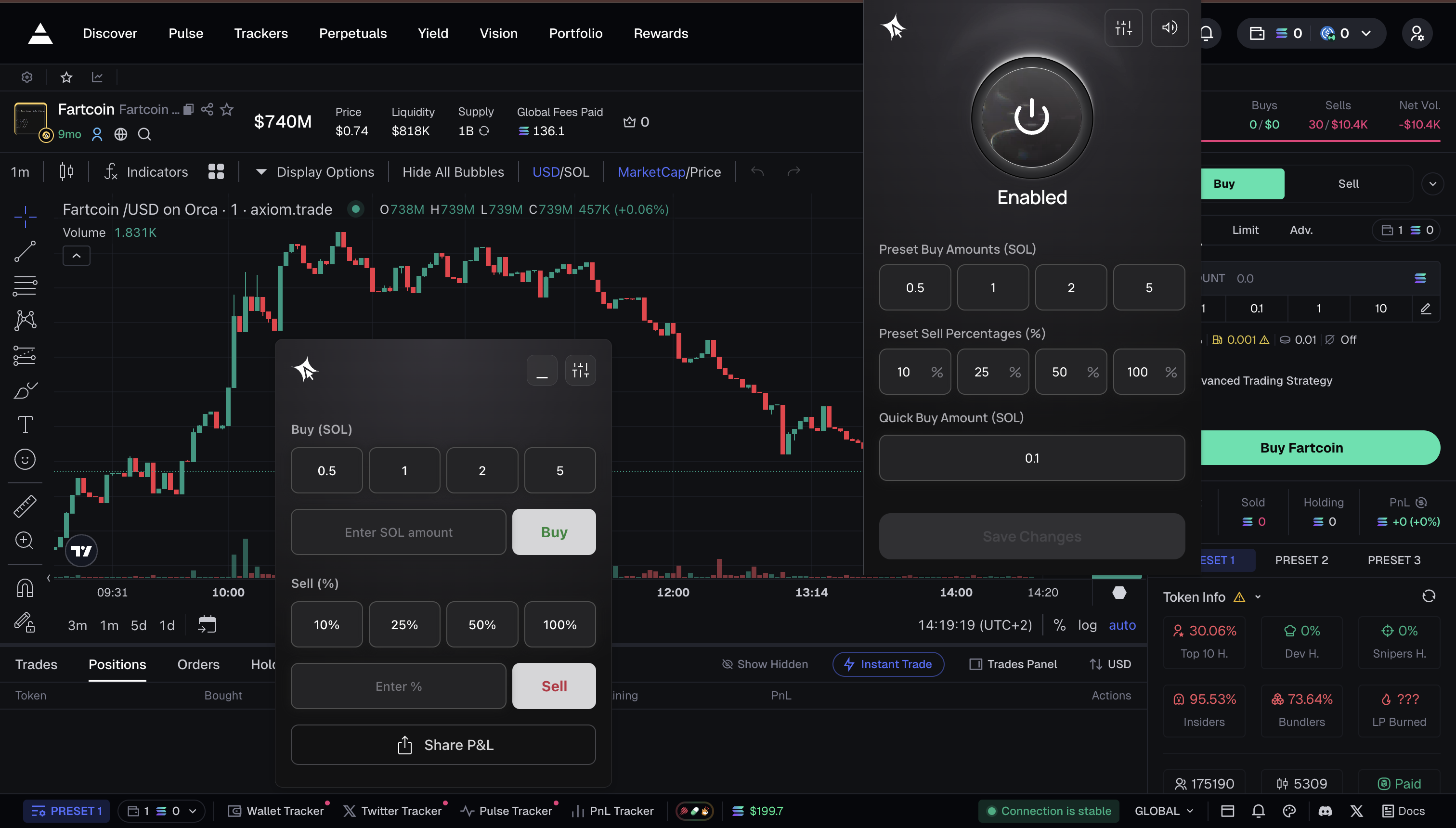
<figure><img src="https://953360368-files.gitbook.io/~/files/v0/b/gitbook-x-prod.appspot.com/o/spaces%2FvlAJauw5lS9CaoRy1bfd%2Fuploads%2FDPHruXEpbnxuKnvdx7Yu%2FBildschirmfoto%202025-09-01%20um%2014.19.20.png?alt=media&amp;token=e21c587d-9783-4958-b2ba-81f24eb0ffe5" alt=""><figcaption></figcaption></figure>

#### Session Management <a href="#db64ab3c-272a-436e-b5c2-9fc5f30845bf" id="db64ab3c-272a-436e-b5c2-9fc5f30845bf"></a>

* Sessions auto-refresh in the background — you stay logged in
* If your session expires, the extension will prompt you to log in again. Click "Get code" to request a fresh code from @clickdottrade\_bot, then enter it to resume
* Logging out preserves your settings (presets, slippage, MEV mode) for next login

#### **Why Use the Extension**

* Trade directly from supported websites without opening a separate terminal.
* Get instant access to Click’s infrastructure, including fast swaps and advanced order types.
* Keep your tools and research flow uninterrupted while executing trades.
* Enjoy seamless syncing with your Click wallet and trading history.


# Supported Sites

The Click Chrome Extension works on the following websites. Features vary by site type.

### Trading Sites <a href="#d57f5d48-9eb0-4617-ba82-384be3077e89" id="d57f5d48-9eb0-4617-ba82-384be3077e89"></a>

Full trading experience — Quick Buy buttons, Trading Terminal, and Portfolio panel.

| Site        | URL                                                       |
| ----------- | --------------------------------------------------------- |
| Axiom       | [axiom.trade](https://axiom.trade)                        |
| Dexscreener | [dexscreener.com](http://dexscreener.com)                 |
| GMGN        | [gmgn.ai](http://gmgn.ai)                                 |
| Padre       | [padre.gg](https://padre.gg)                              |
| Photon      | [photon-sol.tinyastro.io](http://photon-sol.tinyastro.io) |
| Pump.fun    | [pump.fun](https://pump.fun)                              |

### Social & Discovery Sites <a href="#id-64161fae-141a-4559-a897-12c22269d0eb" id="id-64161fae-141a-4559-a897-12c22269d0eb"></a>

Token detection and info overlay — displays token name, price, and market cap when a contract address or ticker is detected. No trading buttons.

| Site           | URL                                         |
| -------------- | ------------------------------------------- |
| Twitter / X    | [x.com](http://x.com)                       |
| Discord (web)  | [discord.com](http://discord.com)           |
| Telegram (web) | [web.telegram.org](http://web.telegram.org) |

### Explorer <a href="#id-21880fec-f57c-45c1-bc18-bfc836fcb898" id="id-21880fec-f57c-45c1-bc18-bfc836fcb898"></a>

| Site    | URL                             |
| ------- | ------------------------------- |
| Solscan | [solscan.io](http://solscan.io) |

### Notes <a href="#id-1ab08e8e-5c5c-410b-a48f-e7145c0f30cd" id="id-1ab08e8e-5c5c-410b-a48f-e7145c0f30cd"></a>

* The extension works on **Desktop Chrome only** — mobile browsers are not supported
* You can enable or disable the extension per site in Site Preferences
* On trading sites, the extension automatically detects the token from the page and loads it into the Trading Terminal
* On social sites, the extension scans for token contract addresses and tickers, showing an info overlay


# Quick Buy & Sell

#### Buy via Extension <a href="#id-82ed1f29-34e2-4161-b395-191157143fc0" id="id-82ed1f29-34e2-4161-b395-191157143fc0"></a>

1. **Navigate to a supported site** — Axiom, GMGN, Photon, Dexscreener, Pump.fun, or Padre
2. **Extension detects the token** — auto-extracts contract address from the page
3. **Use the Quick Buy preset buttons** injected on the page. Default amounts: **0.5 / 1 / 2 / 5 SOL**
   * **One-Click Mode ON** (bolt icon filled): click preset → trade executes instantly, no confirmation step
   * **One-Click Mode OFF** (bolt icon outline): click preset → fills amount field → click Buy to confirm
4. **Or use the Trading Terminal** — draggable overlay with amount input + preset buttons. Can be minimized, detached into a separate window, or snapped to the side.
5. **Trade status** — idle → sending → confirmed (green) / failed (red)
   * Confirmation sound plays on interaction (configurable in settings)

> ⚠️ **One-Click Mode executes trades immediately with no confirmation dialog.** Make sure your preset amounts and slippage are set correctly before enabling it.

> ⚠️ **Insufficient balance:** If your wallet doesn't have enough SOL, the trade will fail. Check your balance in the extension popup before trading.

#### Sell via Extension <a href="#f4143a32-7d05-4f1b-895f-d4c0b9c33bf1" id="f4143a32-7d05-4f1b-895f-d4c0b9c33bf1"></a>

1. **Open the Trading Terminal** on a token page you hold, or open the **Portfolio** panel to see all your holdings
2. **Token detection** — the extension auto-detects the token on the current page. You can also select a different token from your Portfolio
3. **Use sell percentage presets** — 10% / 25% / 50% / 100% of your holding
4. **Enter a custom amount** — type a specific token amount or SOL value instead of using presets
5. **Confirm and execute** (or instant in One-Click Mode)

> ⚠️ **On failure, you must manually retry — there is no auto-retry.**

> 💡 **TIP:** Customize your preset amounts in the extension popup settings.


# Manage Holdings

#### Portfolio Panel <a href="#id-5f1e2abf-531c-49cc-8dd5-9814b739cc2f" id="id-5f1e2abf-531c-49cc-8dd5-9814b739cc2f"></a>

A separate overlay showing your full portfolio (all tokens, not just the current page). Can dock alongside the Trading Terminal or float independently.

**How to open:** Click the portfolio icon in the Trading Terminal header, or use the Portfolio shortcut in the extension popup.

#### What's shown per position: <a href="#id-38f39a99-89de-4a4d-adc5-700728c25492" id="id-38f39a99-89de-4a4d-adc5-700728c25492"></a>

* Token name and ticker
* Position size (token balance)
* Current value (USD)
* Unrealized PnL (USD and %)

> ℹ️ **Entry/average price is not displayed** in the current version. PnL is calculated by comparing total SOL spent on purchases against current market value.

#### Features: <a href="#da0e906f-6a36-4bfd-b7b2-0aa3a29ef50e" id="da0e906f-6a36-4bfd-b7b2-0aa3a29ef50e"></a>

* **Real-time updates** — prices and PnL update in real time
* **Sell from Portfolio** — select a token → sell using percentage buttons (10% / 25% / 50% / 100%) directly from the panel
* **Draggable** — move it anywhere on screen
* **Dock/detach** — snap to Trading Terminal or float independently
* **Minimize/collapse** — reduce to header bar

#### Cross-site consistency <a href="#ab2d6247-d940-42a1-a8b3-3be887e08449" id="ab2d6247-d940-42a1-a8b3-3be887e08449"></a>

Same portfolio data shown on all supported sites — positions don't change when you navigate between sites.

> 💡 **TIP:** New positions appear automatically after a trade — no manual refresh needed.


# Settings

## Settings <a href="#id-42a65e83-40cc-4cad-a79a-e01266ab3847" id="id-42a65e83-40cc-4cad-a79a-e01266ab3847"></a>

Customize your Chrome Extension trading experience. Open the Click extension by clicking its icon in the Chrome toolbar to access all settings.

Settings sync automatically with your Telegram bot — changes you make in the extension apply everywhere, and vice versa.

### In this section <a href="#id-09983c08-1b74-4fda-b37f-9917a372e810" id="id-09983c08-1b74-4fda-b37f-9917a372e810"></a>

| Page              | Description                                                        |
| ----------------- | ------------------------------------------------------------------ |
| Order Settings    | Buy/sell amounts, slippage, fees, tip, MEV protection, sound       |
| Wallet Management | View balances, deposit via Telegram bot, manage your shared wallet |
| Site Preferences  | Enable or disable the extension per website                        |


# Order Settings

field-by-field reference table

All presets are configurable from the extension popup. Open the Click extension by clicking its icon in the Chrome toolbar.

#### Settings Reference - Preset <a href="#id-5cdc6e5d-5f85-41fe-9b04-1550a24e83e7" id="id-5cdc6e5d-5f85-41fe-9b04-1550a24e83e7"></a>

| Setting          | Description                                        | Default   |
| ---------------- | -------------------------------------------------- | --------- |
| Buy Preset 1     | Quick-buy amount in SOL                            | 0.5 SOL   |
| Buy Preset 2     | Quick-buy amount in SOL                            | 1 SOL     |
| Buy Preset 3     | Quick-buy amount in SOL                            | 2 SOL     |
| Buy Preset 4     | Quick-buy amount in SOL                            | 5 SOL     |
| Sell Preset 1    | Quick-sell percentage                              | 10%       |
| Sell Preset 2    | Quick-sell percentage                              | 25%       |
| Sell Preset 3    | Quick-sell percentage                              | 50%       |
| Sell Preset 4    | Quick-sell percentage                              | 100%      |
| Default Slippage | Max price deviation for all trades                 | 20%       |
| Priority Fee     | Extra fee for faster transaction inclusion (SOL)   | 0.002 SOL |
| Tip              | Validator tip for MEV-protected transactions (SOL) | 0.005 SOL |
| MEV Protection   | MEV protection mode                                | Off       |
| Sound            | Confirmation sound on button interaction           | On / Off  |

#### Order Settings <a href="#id-14fd386f-24c0-48eb-a05e-2d07dce078b3" id="id-14fd386f-24c0-48eb-a05e-2d07dce078b3"></a>

<figure><img src="https://953360368-files.gitbook.io/~/files/v0/b/gitbook-x-prod.appspot.com/o/spaces%2FvlAJauw5lS9CaoRy1bfd%2Fuploads%2FPM7esYhfvKsnFNHLlfTl%2Fimage.png?alt=media&amp;token=548bd68a-67f5-489e-98a6-55579268421d" alt=""><figcaption></figcaption></figure>

You can configure:

* Buy Fee (SOL): The fee you want to pay for executing buy transactions.
* Sell Fee (SOL): The fee you want to pay for executing sell transactions.
* Buy Slippage (%): Your default slippage tolerance for buy orders.
* Sell Slippage (%): Your default slippage tolerance for sell orders.

Once saved, these preferences are applied to every trade you make, whether through the Chrome extension or the trading bot, ensuring a unified trading experience.

#### Slippage <a href="#id-14fd386f-24c0-48eb-a05e-2d07dce078b3" id="id-14fd386f-24c0-48eb-a05e-2d07dce078b3"></a>

The default slippage of 20% is set high to accommodate volatile meme tokens. Lower this for established tokens where price moves less rapidly. Slippage determines the maximum price deviation allowed before a trade is rejected.

#### MEV Protection Modes <a href="#id-62a359db-1649-4f81-8a67-05fa10453ede" id="id-62a359db-1649-4f81-8a67-05fa10453ede"></a>

| Mode       | Description                                                                                                                  |
| ---------- | ---------------------------------------------------------------------------------------------------------------------------- |
| **Off**    | No MEV protection. Fastest execution.                                                                                        |
| **Turbo**  | Standard MEV protection via secure transaction routing. Shields transactions from front-running with minimal latency impact. |
| **Secure** | Maximum MEV protection. Strongest shielding against sandwich attacks and front-running, but may have higher latency.         |

#### Priority Fee vs Tip <a href="#e435d9d4-8cbd-46a2-a0ab-6c47034c221f" id="e435d9d4-8cbd-46a2-a0ab-6c47034c221f"></a>

* **Priority Fee** — Solana network transaction priority fee. Pays validators to prioritize your transaction in block ordering. In the Telegram bot this is hardcoded; in the extension it is configurable.
* **Tip** — Validator tip sent via the MEV protection layer. Only applies when MEV Protection is set to Turbo or Secure. This is separate from the Solana Priority Fee.

#### How to configure: <a href="#id-5253d5c6-0dce-41a9-a46f-7d517483057e" id="id-5253d5c6-0dce-41a9-a46f-7d517483057e"></a>

1. Open the Click extension by clicking its icon in the Chrome toolbar
2. Adjust values in the popup
3. Changes apply immediately to all supported sites

> 💡 **TIP:** Popup settings are for quick access. These are the same values used by the Trading Terminal and injected Quick Buy buttons on all sites.


# Wallet Management

#### Shared Wallet <a href="#id-10d08f79-6690-4f21-89c4-e078e504f687" id="id-10d08f79-6690-4f21-89c4-e078e504f687"></a>

The extension uses the **same wallet** as your Telegram bot. There is no separate wallet, funding address, or setup required.

> ℹ️ **No separate funding needed.** Deposit SOL via the Telegram Spot Bot (`/start` or `/wallet`), and your balance is immediately available in the extension.

#### What's available in v1: <a href="#id-75d4e7c1-c91d-434f-a216-b53871cc220e" id="id-75d4e7c1-c91d-434f-a216-b53871cc220e"></a>

* Your wallet is used for all trades executed via the extension
* Balances and positions sync automatically across Telegram bot and extension
* Trade history is shared

#### Funding your wallet <a href="#e95350af-0512-474e-972a-d7fdd22b3d68" id="e95350af-0512-474e-972a-d7fdd22b3d68"></a>

To add funds for trading via the extension:

1. Open @clickdottrade\_bot in Telegram
2. Send `/wallet` to see your deposit address
3. Send SOL to the address
4. Funds are available in both Telegram bot and Chrome extension immediately

👉 **Full deposit guide:** Fund Your Wallet

> ⚠️ **Multi-wallet support is coming in a future version.**


# Site Preferences

**Site Preferences**&#x20;

<figure><img src="https://953360368-files.gitbook.io/~/files/v0/b/gitbook-x-prod.appspot.com/o/spaces%2FvlAJauw5lS9CaoRy1bfd%2Fuploads%2FEXPpfxzYUhX5IhJ9YixI%2FBildschirmfoto%202025-09-01%20um%2014.26.07.png?alt=media&amp;token=fff60ec3-4629-46e5-ae8b-774be8e51d13" alt=""><figcaption></figcaption></figure>

#### What it does <a href="#bd80154e-c91a-4e66-948d-7838513f36f9" id="bd80154e-c91a-4e66-948d-7838513f36f9"></a>

Enable or disable the extension overlay on a per-website basis. When disabled for a site, no Quick Buy buttons, Trading Terminal, or Portfolio panel will appear on that site.

#### How to access <a href="#id-21105ab3-8ebb-41ac-a647-5a39081b701f" id="id-21105ab3-8ebb-41ac-a647-5a39081b701f"></a>

Extension popup → master toggle, OR per-site toggles in the extension settings.

#### Per-site toggles <a href="#id-18a731fc-bcfb-4611-8173-3d6ebbd6d921" id="id-18a731fc-bcfb-4611-8173-3d6ebbd6d921"></a>

Each supported site can be individually enabled or disabled:

**Trading sites** (Axiom, GMGN, Photon, Dexscreener, Pump.fun, Padre):

* Quick Buy buttons injected on token pages
* Trading Terminal overlay
* Portfolio panel

**Social sites** (Twitter/X, Discord web, Telegram web):

* Token contract address detection in posts/messages
* Hover overlay showing token info, price, and quick-trade option
* No Quick Buy button injection on the page itself
* Discord and Telegram support is for their **web versions only** ([discord.com](http://discord.com), [web.telegram.org](http://web.telegram.org))

**Explorer** (Solscan):

* Token detection on address pages
* Overlay with token info and quick-trade option

#### How to toggle a site <a href="#id-86c4953d-732f-48c8-be8f-1bb1070a80ac" id="id-86c4953d-732f-48c8-be8f-1bb1070a80ac"></a>

1. Open the Click extension by clicking its icon in the Chrome toolbar
2. Navigate to the site preferences / settings section
3. Use the toggle switch next to each site name to enable or disable it
4. Changes take effect immediately — no reload required

#### Master toggle <a href="#id-4e5ec172-f0d8-4281-ac84-eb962d3dac88" id="id-4e5ec172-f0d8-4281-ac84-eb962d3dac88"></a>

The global on/off toggle disables all overlays across all sites at once. When turned back on, your per-site preferences are preserved.

#### Settings sync <a href="#dcbff0b5-11f6-46ed-ac94-e9a9feb6d6a6" id="dcbff0b5-11f6-46ed-ac94-e9a9feb6d6a6"></a>

Changes to site preferences sync automatically across all your devices. Any update made in the extension is reflected everywhere.


# Referrals

The Click general public referral program lets you earn lifetime rewards from the trading activity of users you invite.

<figure><img src="https://953360368-files.gitbook.io/~/files/v0/b/gitbook-x-prod.appspot.com/o/spaces%2FvlAJauw5lS9CaoRy1bfd%2Fuploads%2FLY6bdDCZuqrlPN41ewe2%2FBildschirmfoto%202025-09-01%20um%2013.09.38.png?alt=media&amp;token=230fcb8b-7580-4244-ad37-ca9c0582aae6" alt=""><figcaption></figcaption></figure>

**How It Works**

* Access the **Referrals** section from the Home menu to create your personal referral link.
* Share your link with others or use the **Share Token with Referral Code** option directly from a token’s position page.
* Earn fee shares whenever your referrals trade, with rewards paid out across multiple levels:
  * Level 1: 35%
  * Level 2: 5%
  * Level 3: 3%

**Claiming Rewards**

Users can monitor their accrued referral earnings directly from the Referrals section. Rewards can be claimed at any time and are sent directly to the user’s Click wallet.&#x20;

All referral payouts are made in Solana (SOL), providing immediate access to earned rewards without additional steps.

**Key Benefits**

* Lifetime rewards: Earnings are not time-limited, making this one of the first referral systems in the industry to provide ongoing rewards.
* Multi-level structure: Earn not only from users you invite but also from their networks.


# Cashback

Cashback will be introduced soon as part of Click broad rewards system, offering some of the highest rates in the industry.&#x20;

Users will not only earn a share of the fees generated by people they refer but will also receive cashback on their own trading fees.&#x20;

This creates a dual incentive structure where every trade - yours or your referrals’ - helps you earn more.


# Website

Visit our website to get a full view of Click - a high-performance execution layer built to unify trading across chains, products, and platforms.&#x20;

Explore how we combine infrastructure, liquidity routing, and user experience into a single system designed to move value efficiently and give traders a faster, more seamless way to operate.

Visit our Website for more info: [https://click.trade](https://click.trade/)


# Community

Click’s community is built around execution, not noise.&#x20;

We bring together traders, operators, and distribution partners who actively contribute to volume, liquidity, and product feedback.&#x20;

Access is earned through participation and performance, with clear incentives aligned to trading activity, retention, and long-term contribution.&#x20;

If you want to be part of a system that rewards real usage and impact, not just presence, follow us:

* Our X: <https://x.com/clickdottrade>
* Our LinkedIn: <https://www.linkedin.com/company/click-trade-systems/>
* Our Industry News Channel: [t.me/clickinsights](https://t.me/clickinsights) <br>

***

### **Trading at scale?**

Apply for VIP Program: <https://forms.gle/6zJnYiCcf4PCGr5v9>

Reach out to our team to explore the full list of Benefits.


# Supported Platforms

**Current Supported Platforms**

* Axiom
* BullX Neo
* Dex Screener
* GmGn
* Photon
* Pump.fun
* Twitter


# Brand Assets

Access our brand assets to ensure everything you build with Click is consistent, recognizable, and aligned with our positioning. You’ll find logos, visual guidelines, and key messaging frameworks designed to maintain a clear, high-signal presence across all channels and collaborations.

Rulebook & Guidelines: [CLICK TRADE BRAND BOOK](https://www.figma.com/design/p56KfGRkwp2vmAb3lekcbb/CLICK-TRADE---EXTERNAL?node-id=97-56)

***

<h3 align="center">Logos Quick Access</h3>

**SVG:**

<div align="left"><figure><img src="https://953360368-files.gitbook.io/~/files/v0/b/gitbook-x-prod.appspot.com/o/spaces%2FvlAJauw5lS9CaoRy1bfd%2Fuploads%2FnXAMXr78JGoaHHWCU9Vd%2Flogo.svg?alt=media&amp;token=7bd90393-304f-4d48-b337-8512640ae488" alt=""><figcaption></figcaption></figure></div>

**PNG:**&#x20;

<div align="left"><figure><img src="https://953360368-files.gitbook.io/~/files/v0/b/gitbook-x-prod.appspot.com/o/spaces%2FvlAJauw5lS9CaoRy1bfd%2Fuploads%2FRRyIjLtHOkRteX0QPj5N%2Flogo%20(1).png?alt=media&amp;token=ad34fb25-fe28-4322-9bd4-9d8675143176" alt="" width="288"><figcaption></figcaption></figure></div>

**SVG:**

<div align="left"><figure><img src="https://953360368-files.gitbook.io/~/files/v0/b/gitbook-x-prod.appspot.com/o/spaces%2FvlAJauw5lS9CaoRy1bfd%2Fuploads%2F6CKaf2oIsrFZsi5dlJJN%2FComponent%202.svg?alt=media&amp;token=cdb6fecb-1e9b-4571-83a6-ef48b62985f1" alt="" width="375"><figcaption></figcaption></figure></div>

**PNG:**

<div align="left"><figure><img src="https://953360368-files.gitbook.io/~/files/v0/b/gitbook-x-prod.appspot.com/o/spaces%2FvlAJauw5lS9CaoRy1bfd%2Fuploads%2FZZfZcqM9VpDBLtdPI1aX%2FComponent%202.png?alt=media&amp;token=70696b22-55b2-4a9c-b210-23763d37e446" alt="" width="375"><figcaption></figcaption></figure></div>


# Co-Marketing

If you’re interested in co-marketing with Click, fill out the form to help us understand your audience, distribution strengths, and how we can structure a campaign that drives real trading activity.&#x20;

We prioritize partners who can convert attention into high-quality traders and sustained volume, so the more clarity you provide, the faster we can align on a high-impact collaboration.

Fill out this Form & we will be in touch: <https://form.typeform.com/to/gaeMOVCz>


# Click Engine APIs

The Click Engine APIs provide direct query access to our ultra-low latency infrastructure, built fully in Rust and co-located with validators for unmatched speed and execution reliability. Sophisticated users can integrate Click into their existing systems to customize execution flows, data pipelines, and signal intelligence. These are the same APIs powering the Click ecosystem across web, extension, and Telegram surfaces.

<figure><img src="https://953360368-files.gitbook.io/~/files/v0/b/gitbook-x-prod.appspot.com/o/spaces%2FvlAJauw5lS9CaoRy1bfd%2Fuploads%2FUXfjW0s1KTYoNtXxESBh%2Fimage.png?alt=media&amp;token=f6ec9961-0f25-4a31-8510-df2c8992c59d" alt=""><figcaption></figcaption></figure>

\
Through the API, users can:<br>

* Create non custodial wallets with <5ms signing times, directly integrated into all other services
* Subscribe to real-time data streams including enriched market data, wallet movements, and signal feeds with microsecond-level latency
* Trigger swaps, limit orders, or any other backrun strategies off-chain with Click Embedded Wallets or BYO wallets
* Route transactions directly to validators via our proprietary router for 0-slot landing

Institutions and professional traders that onboard to Click automatically qualify for API access.

Request API Access [here](https://docs.google.com/forms/d/e/1FAIpQLSdgtt8DVV_EXhzw6F6cmi9taGy6ZZOdHl5kgnelcG7DUnOhVA/viewform?usp=send_form) <br>